
What is a DNG file, and what’s inside a DNG preset?
What is a DNG file? It’s Adobe’s open raw photo format, short for Digital Negative. Some cameras and phones save straight to DNG, and preset sellers use it because a DNG opens in Lightroom like any other photo, settings included. Here’s what’s inside one, how it compares with your camera’s own raw files and JPEGs, and how to get the settings out of a DNG preset.
What a DNG file is
Adobe introduced DNG in 2004 as a single, openly documented format for raw photos. Before that, and still today, every camera maker had its own raw format: NEF for Nikon, CR3 for Canon, ARW for Sony, RAF for Fujifilm. Each needs software that knows that specific camera. A DNG holds the same kind of data in a format any DNG-aware program can read, and Adobe publishes the specification for anyone to use.
Think of a DNG as a container with four layers:
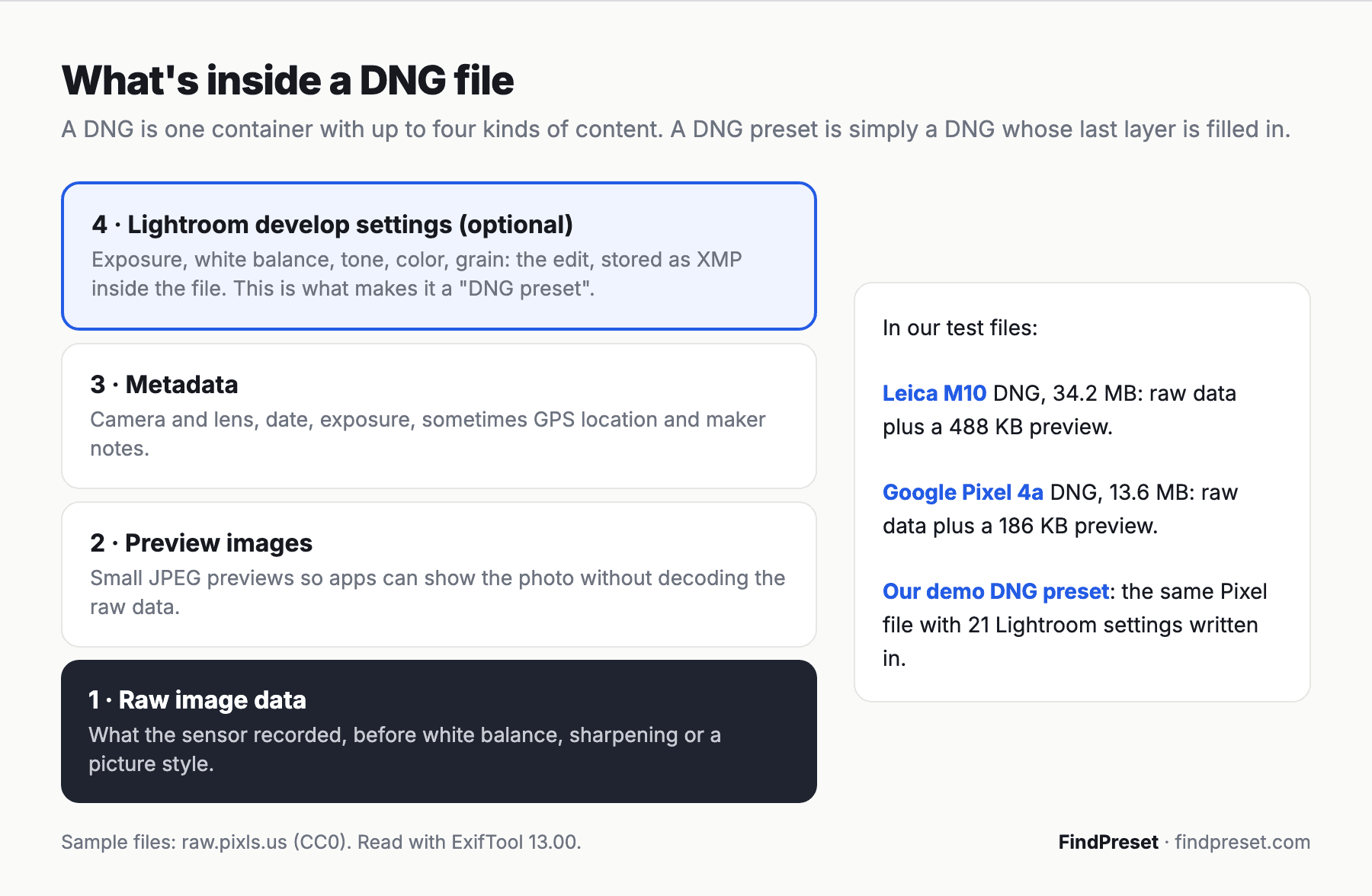
- Raw image data: what the sensor recorded, before any white balance, sharpening or picture style.
- Preview images: small JPEGs so apps can show the photo quickly. Our Leica M10 sample carries a 488 KB preview inside a 34.2 MB file.
- Metadata: camera, lens, exposure and date, sometimes GPS location and the maker’s own notes.
- Develop settings, optional: Lightroom edits stored as XMP inside the file. This layer is what turns an ordinary DNG into a DNG preset.
DNG vs RAW vs JPEG
A DNG and a camera’s own raw file hold the same thing: raw sensor data with the most room for editing. A JPEG is a finished, compressed image with 8 bits per color channel, so it has far less room to recover highlights or change white balance.
| DNG | Camera RAW (NEF, CR3, ARW, RAF) | JPEG | |
|---|---|---|---|
| Who defines it | Adobe, openly documented | Each camera maker | An international standard |
| Editing room | Most | Most | Least |
| Example size, 24 MP | Leica M10: 34.2 MB | Nikon D750: 20.1 MB | Smallest of the three |
| Opens in | Lightroom, Photoshop, most raw editors | Software that supports that camera | Almost anything |
| Where Lightroom edits live | Inside the file | Catalog or a separate .xmp file | Inside the file |
The last row matters for presets. Lightroom can’t write into a Nikon or Canon raw file, so it stores those edits in its catalog or in a small .xmp file next to the photo. A DNG and a JPEG can carry the edits inside themselves, which is why both can be shared as “presets”.
Which cameras and phones shoot DNG
Plenty of cameras skip the proprietary step and write DNG directly. We read three original files from the CC0 archive raw.pixls.us to show what they contain:
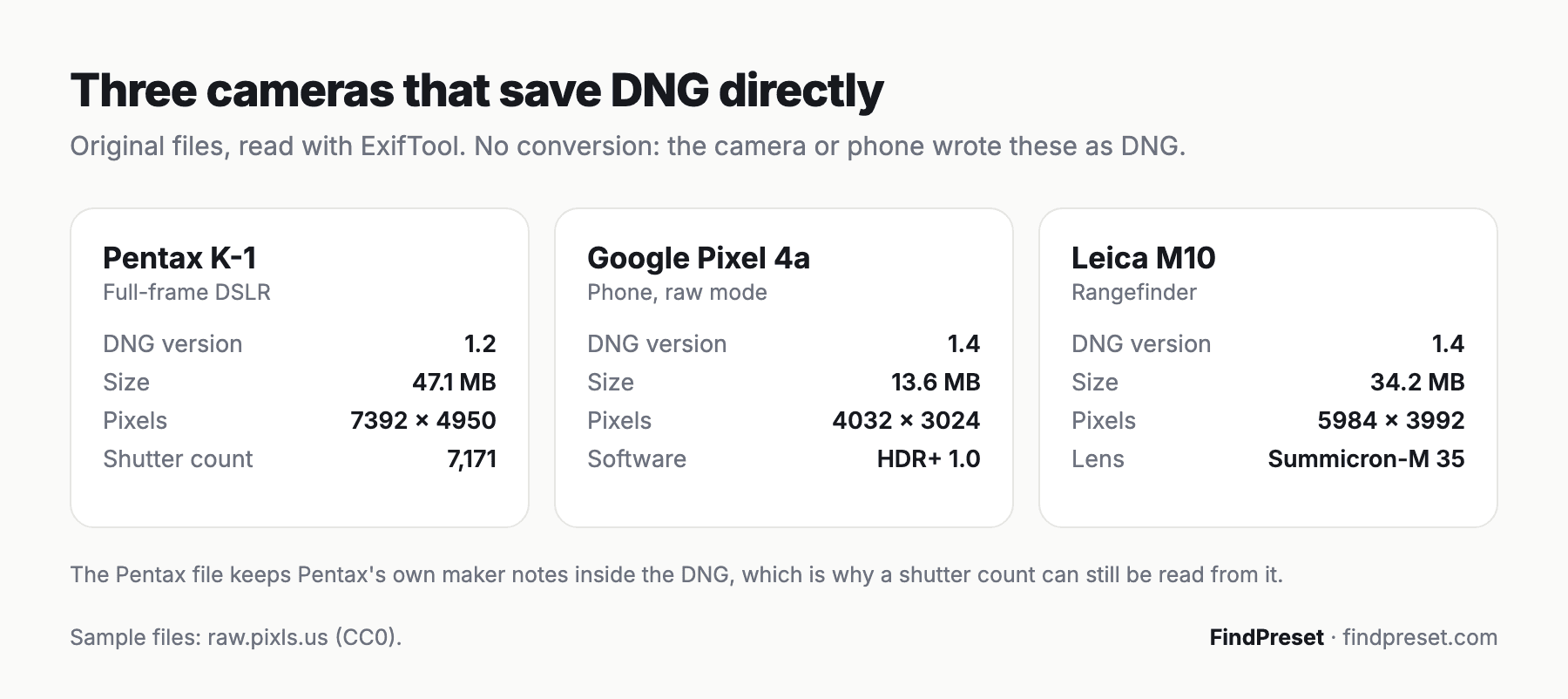
- Leica cameras such as the M10 save DNG as their raw format.
- Pentax bodies such as the K-1 let you choose between Pentax’s own PEF and DNG. Ricoh’s GR cameras shoot DNG too.
- Phones: Google Pixel phones save their raw photos as DNG. Apple ProRAW files are standard DNGs too, as the Library of Congress format description notes, and Samsung’s Expert RAW app saves DNG files as well.
One detail stood out in our test: the Pentax DNG still carries Pentax’s own maker notes, so its shutter count (7,171) can be read with our shutter count checker just as from a Pentax PEF file.
Should you convert your raw files to DNG?
Adobe’s free DNG Converter turns most cameras’ raw files into DNG, and Lightroom can do the same while importing. Whether it’s worth it depends on how you work.
Reasons to convert:
- One format for everything. Old raw formats from discontinued cameras are covered by one open format.
- Fewer loose files. Edits can live inside the DNG instead of in separate .xmp sidecar files.
- Smaller files. DNG uses lossless compression, which often makes files a little smaller than the original raw.
Reasons not to:
- Camera maker software. Nikon, Canon and Sony’s own apps generally don’t open DNGs made from their raw files.
- Extra time and storage if you keep the originals as a backup, which most photographers do.
- Lossy options. The converter can make lossy or reduced-size DNGs. Those are smaller but no longer hold all of the original raw data.
If you’re happy in Lightroom and keep backups, converting is optional, not necessary.
What a DNG preset is
A DNG preset is a photo, saved as DNG, with a set of Lightroom develop settings stored inside it. Sellers ship presets this way because a DNG imports into Lightroom on a phone exactly like any other photo, which for years was the easiest way to get a preset into the mobile app. Once it’s in, you copy its settings or save them as a preset.
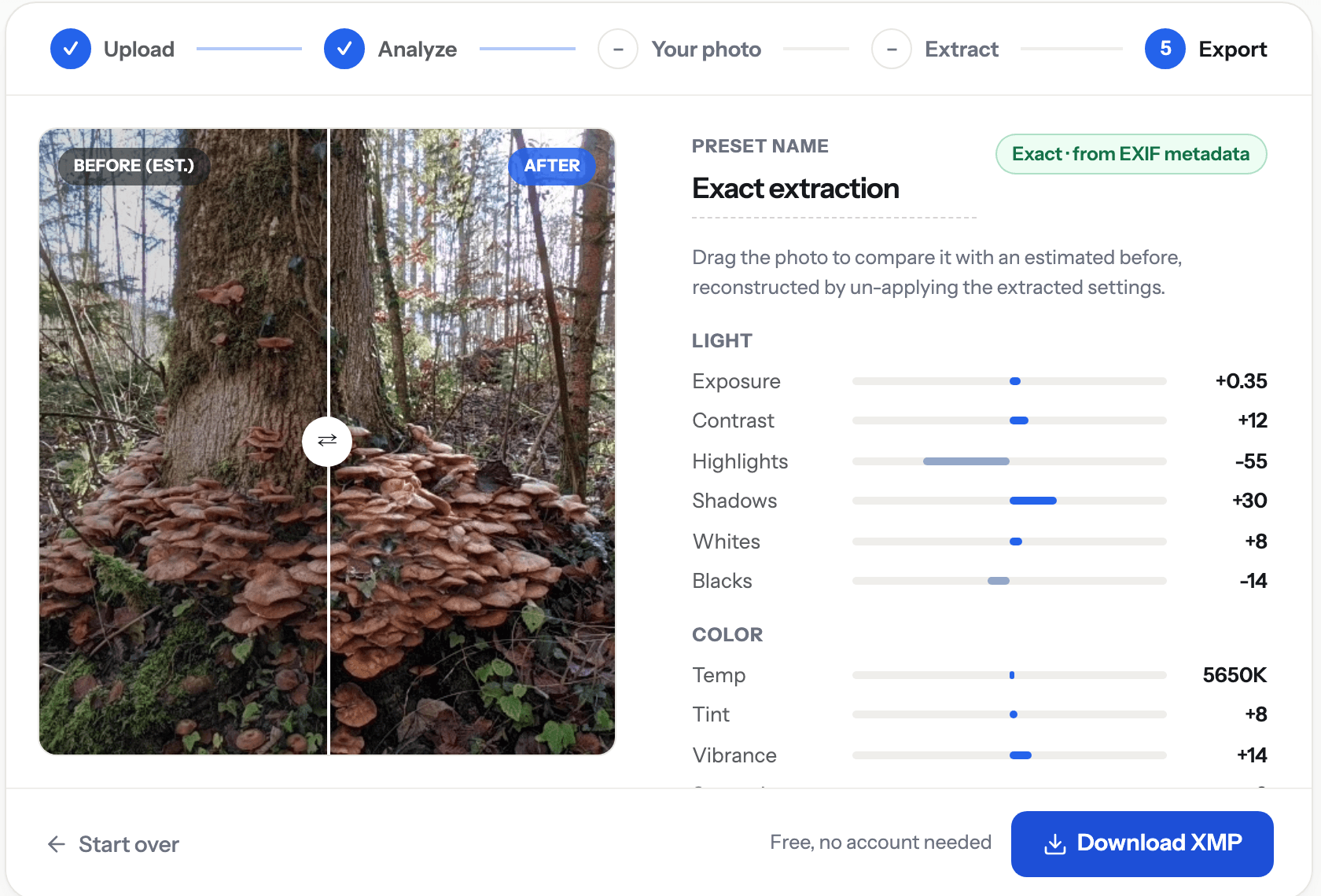
To show what that looks like, we made our own: we took the CC0 Google Pixel 4a DNG and wrote 21 Lightroom settings into it, from exposure and white balance to split toning, grain and a vignette. Opened in FindPreset, the settings are found straight away:
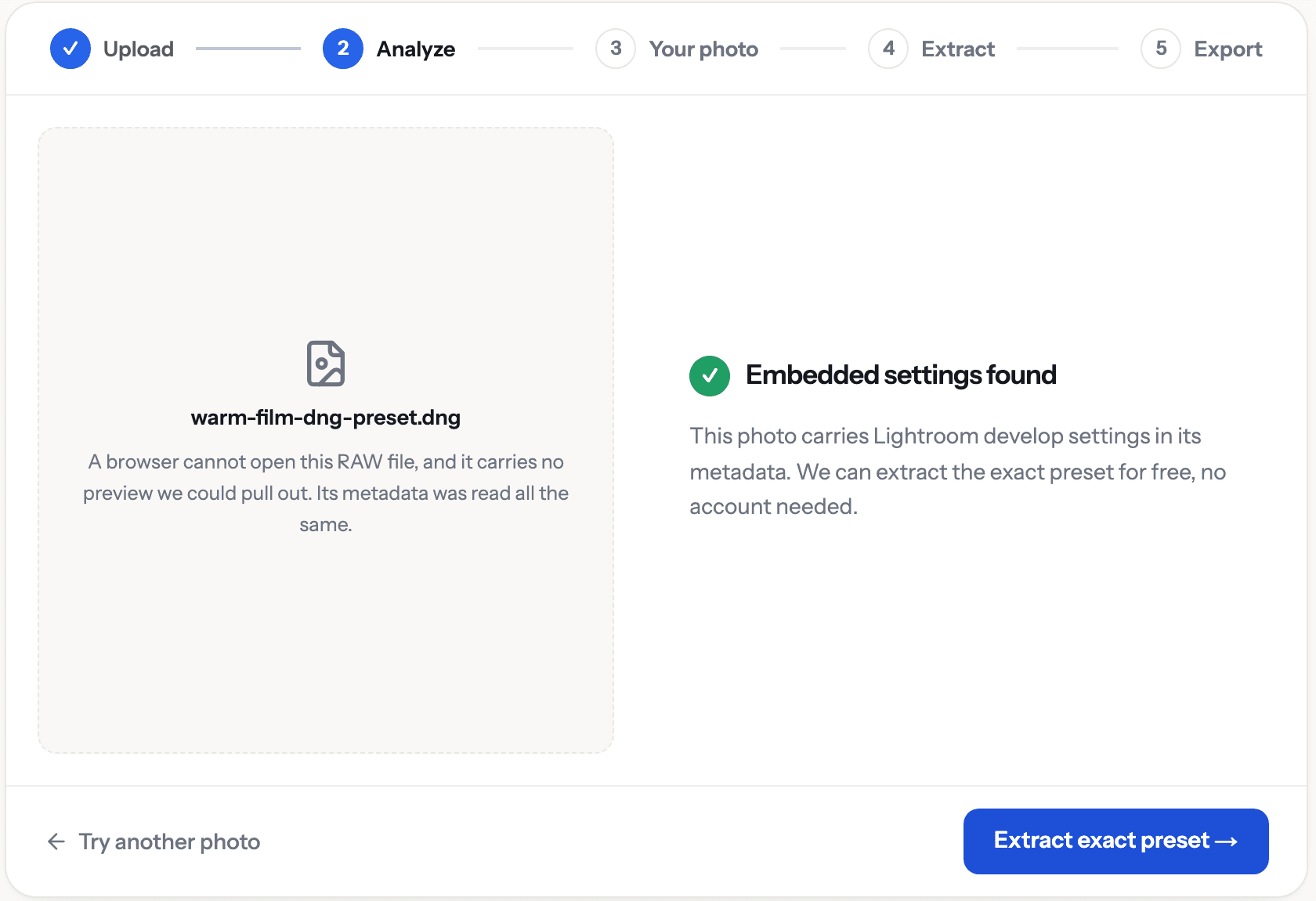
A DNG preset only carries settings, not a look that suits every photo. Its white balance and exposure were tuned for the sample photo, so on your own pictures it may need adjusting. That’s normal, and the main reason bought presets can look different from the seller’s examples.
How to turn a DNG preset into an XMP
You have two options.
In Lightroom:
- Import the DNG preset like any photo.
- Open it in the Develop view (on a phone: open the photo in the editor).
- Create a preset from it: in Lightroom Classic, click the plus icon in the Presets panel and choose Create Preset; in the mobile app, tap the three-dot menu and choose Create Preset.
- Name it, choose which settings to include, and save. Adobe’s help explains creating presets in the mobile app.
With FindPreset: upload the DNG preset at findpreset.com. When the file carries Lightroom settings, the exact extraction reads them out and gives you an XMP file to import into Lightroom, free and without an account. With our 13.6 MB demo file, all 21 settings came back exactly as we had written them, from the 5650K white balance to the split toning and grain.
No DNG, just a JPEG you like? The same approach works for edited JPEGs that kept their metadata. Our guide on how to make a preset from a photo covers both, and how to recreate an editing style explains what to do when the file has no settings at all. If you’re still building a collection, here’s where to get Lightroom presets for free.
Frequently asked questions
Is DNG better than RAW?
Not better for image quality: a DNG converted without lossy options holds the same raw data as the original. It’s better for compatibility and for keeping edits inside the file, and worse if you rely on the camera maker’s own software, which usually can’t open it.
Can I open a DNG file without Lightroom?
Yes. Photoshop, most raw editors and many free photo viewers open DNG files, macOS previews them out of the box, and Windows does with Microsoft’s free Raw Image Extension. Exact support for a given camera’s DNG depends on the app.
Why are DNG presets used instead of XMP files?
A DNG imports into Lightroom on a phone like any photo, so buyers don’t have to handle preset files or folders. It also shows a preview of the look, which an XMP file can’t.
Does converting to DNG lose quality?
A standard conversion keeps all of the raw image data and uses lossless compression. Quality is only lost if you choose the lossy or reduced-size options in the converter.
How do I install a DNG preset on Lightroom mobile?
Add the DNG to your photos, import it into the Lightroom app and open it in the editor. Tap the three-dot menu, choose Create Preset, name it and save. The preset then appears in your presets list for any photo.
Sources
- Sample files from raw.pixls.us (CC0): Pentax K-1 IMGP8551.DNG, Google Pixel 4a PXL_20201121_100251397.dng, Leica M10 f5381888.dng and a Nikon D750 NEF for size comparison. Read with ExifTool 13.00 on 22 October 2026.
- Adobe: Digital Negative (DNG), Adobe DNG Converter and creating presets in Lightroom mobile.