
How to Extract Any Photo Style Using AI-Powered Preset Tools
With large language models like ChatGPT coming into the frame creating a preset for fast convenient workload management is no longer an expensive proposition. With a little bit of prompt engineering a photographer or a photo editor can create a customized preset for easy workload management in Lightroom.
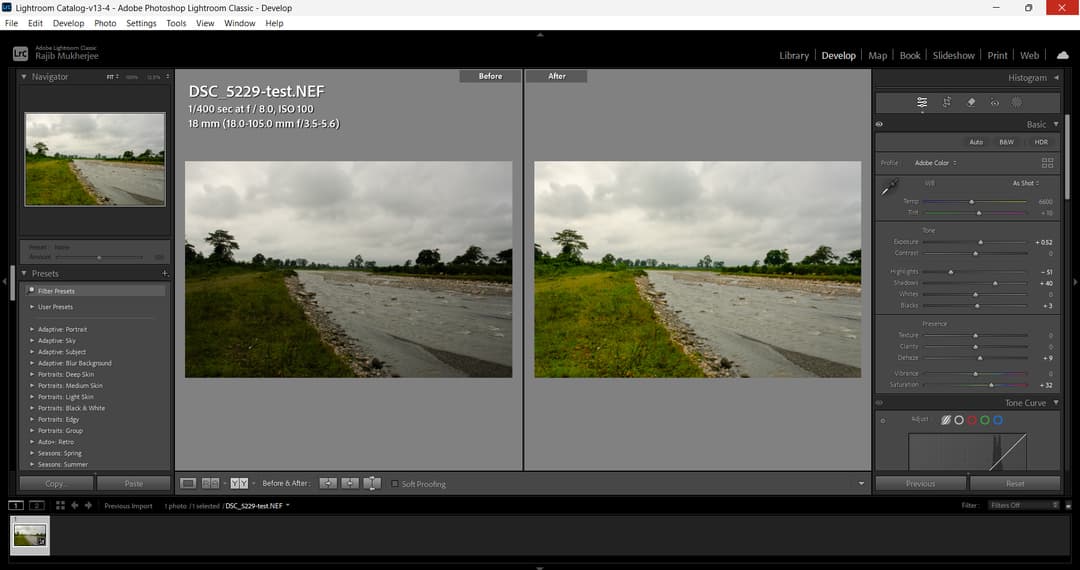
Or that’s what most photographers think they can do. It is easier said than done.
I’ll explain why.
Advantages and Disadvantages of ChatGPT
Not Tailor-made for Lightroom Presets
While ChatGPT is a capable tool for creating presets and it does an excellent job of analyzing a photograph including the editing parameters that might have been used to edit the image, it is not exactly a tailor-made solution for creating Lightroom presets.
Trial and Error Method
It would often require you to fine tune the prompt by repeatedly modifying and refining it so that the AI is able to create a preset that closely matches your requirement. In the brief time that I actually tried to do this using ChatGPT I realized how frustrating the whole process is.
You prompt the AI to create a preset, install it into Lightroom, test it for accuracy, refine the AI prompt and repeat. This is one trial and error process I would hate to do often.
Adobe’s Neural Filters Work Differently
Compared to that, something like Adobe Photoshop’s Neural Filters (Style Transfer, Color Transfer, Harmonization) can copy the look of a reference image onto a photo, but they change the pixels directly and do not give you editing parameters or a preset.
Tools such as these are powered by neural networks, one of the smartest artificial intelligent tools available to us. They mimic the way the human brain works and is comprised of layers off electronic nodes that work like neurons, processing stacks of data including images and texts.
The purpose of these artificial neural networks is to perceive and analyze an image, much like the way a human brain would do, but at a much faster rate and therefore decipher details about an image faster than the human brain can.
Use the Built-in Preset Option Within Lightroom
Another simple way of creating a preset is to use the built in feature within Lightroom. This is nothing new but I would just like to share a process that I discovered sometime back while editing landscape photos.
Suitability for Landscape Photography
I am quite a passionate landscape photographer and head out to the outdoors as often as I can. One reason for that is so that I can carry my camera along to take some pictures. Needless to say, my hard drive is always full of photos that I never seem to get the time to edit. One reason for that being: it seems like a lot of work.
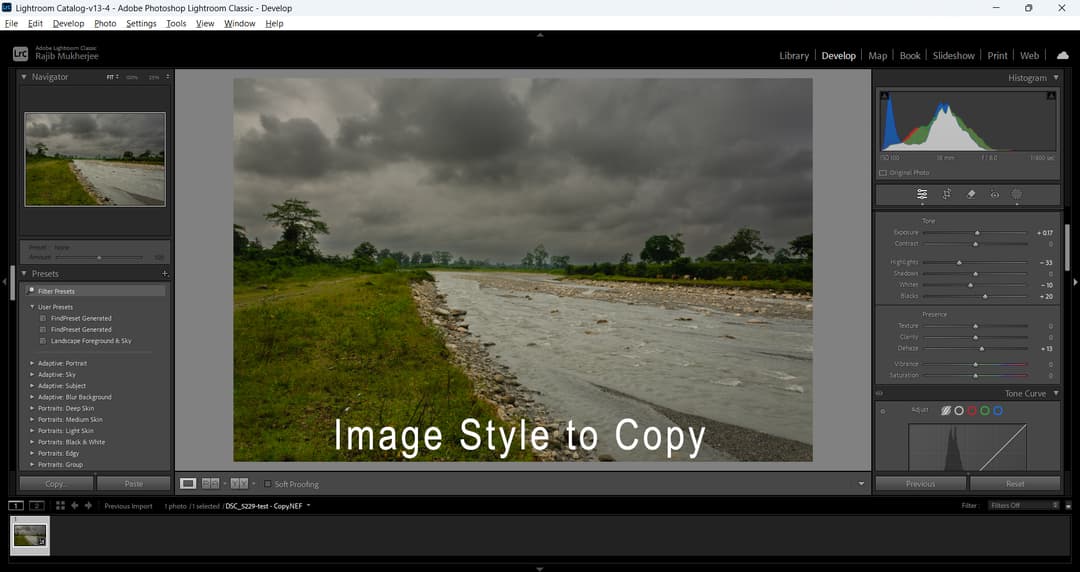
My idea of photography is to shoot the images as close to what I want in the camera and make minimal adjustments on my computer. But it is easier said than done and often I don’t get it close to what I would love to.
Presets Allow Easy Batch Editing
The problem that arises from that is that there are tons of images on my hard drive still waiting to see the light of day. I believe in batch processing and once I’m happy with a particular photo I would love to copy paste all the adjustments that I’ve made to all the other photos shot in the same light and at the same place.
Masking and Presets
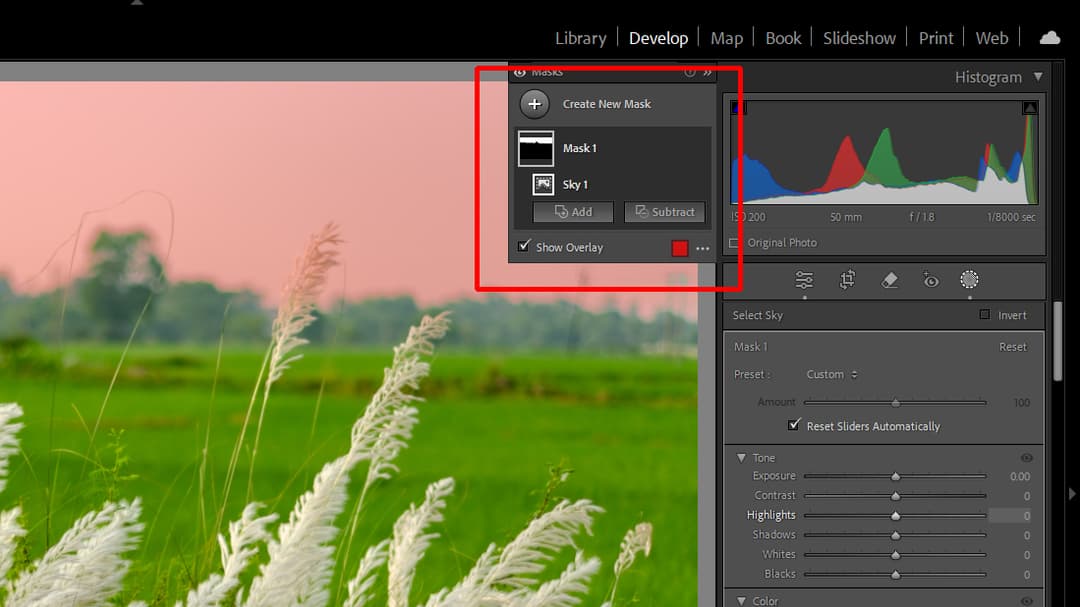
I do use a lot of masking while editing my landscape photos. The specific uses would be to split the sky and the foreground and apply different adjustment parameters to the exposure, contrast, whites, blacks and other aspects.
Apart from the problem that I used to face with the early versions of Lightroom where I couldn’t make a clear selection of the foreground and background, I couldn’t create a preset that would apply to all images regardless of the composition.
What I mean by that is that if the sky occupied 1/3 of the image and the foreground occupied the rest I can use a mask that would work perfectly for that image. But if I created a preset out of that mask and apply that preset to the next image where the sky occupied 2/3 of the image, the preset would apply on areas more than it needed to.
Advantage with Newer Versions of Lightroom
In the newer versions of Lightroom I can now create a selection of the sky using masking and then duplicate and inverse the mask to select the foreground and then save it as a preset which I can then use for other images.
The beauty of this technique is that it will work for other images regardless of the composition. Though there are instances where I’ve seen that this technique is not 100% accurate and does not always give you the best possible result, but it is still a far better solution than the previous ones.
The problem with Lightroom
The core problem, however, remains where you need to finalize the look and feel the image and then create a preset based on that final look.
I love using presets, especially ones that I can download from free sources and give my photos a certain distinctive look I’m after.
Custom made presets works the best, but as I’ve always noticed they take a bit of time to perfect. This is where an AI made preset is often what I was forced to go for. But I don’t always like the result that I saw and of course the process was cumbersome. Especially with tools like ChatGPT.
So the next best thing is Findpreset.com.
Extract a Photo Editing Style in 3 Easy Steps Using Findpreset.com
A much easier and more effective process of creating a customized preset based on an image is the tool available at Findpreset.com.
Let me show how it works.
Step 1: Upload an Image You Like
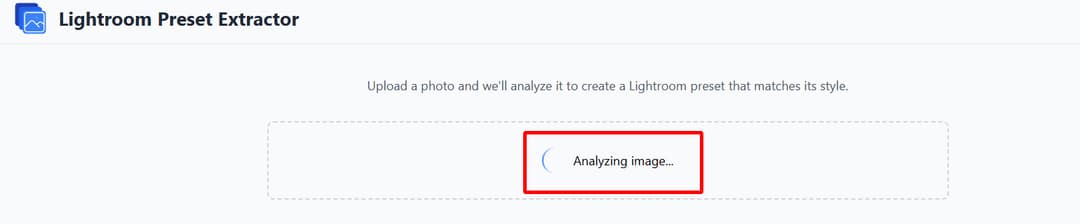
If the photo still carries its Lightroom settings, FindPreset reads them exactly, and that is free. When those settings are gone, it recreates the look with AI: it studies the photo’s color, tone and contrast and builds a preset that captures most of the look.
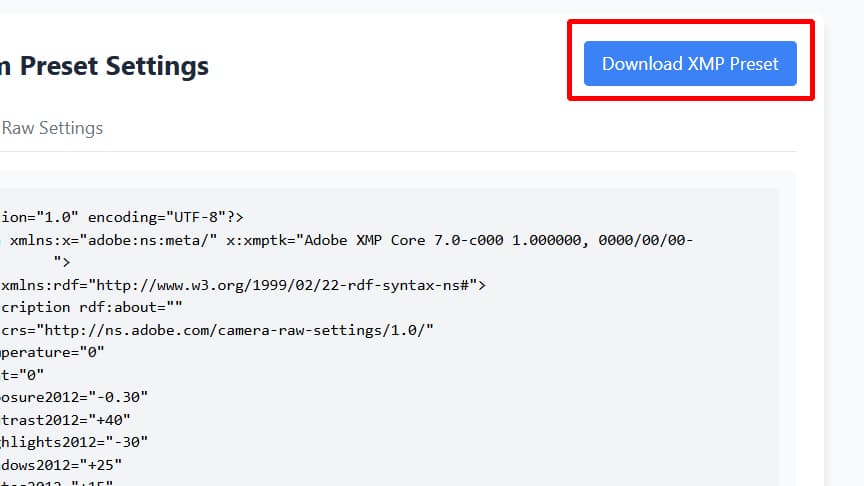
Step 2: Download the Preset as an XMP File
All this takes about half a minute, and the end result is a custom-made preset that you can download as an XMP file.
Step 3: Import the Preset into Lightroom
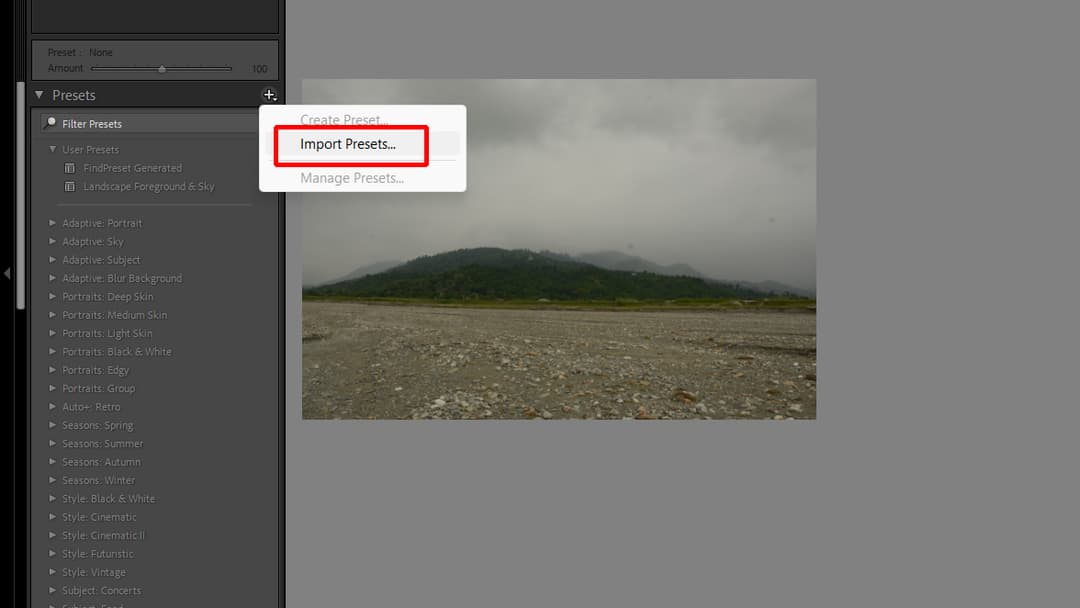
Once the preset is successfully downloaded onto your computer head over to your copy of Lightroom and import the preset.
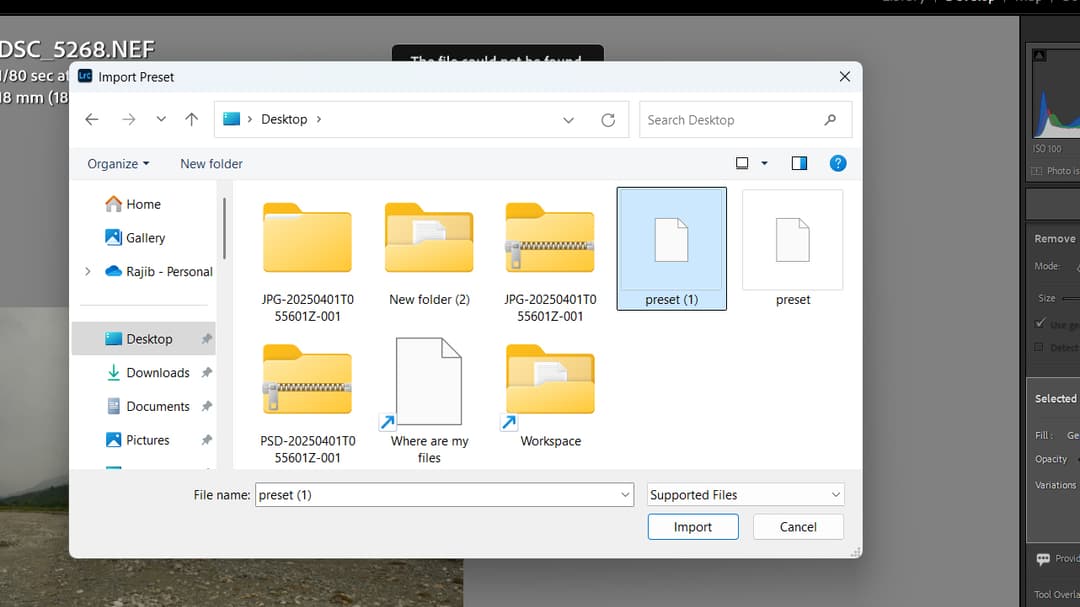
The next time you are making any edits to a photo all you have to do is choose this preset from the preset library and it will apply the settings the tool worked out from the original image.
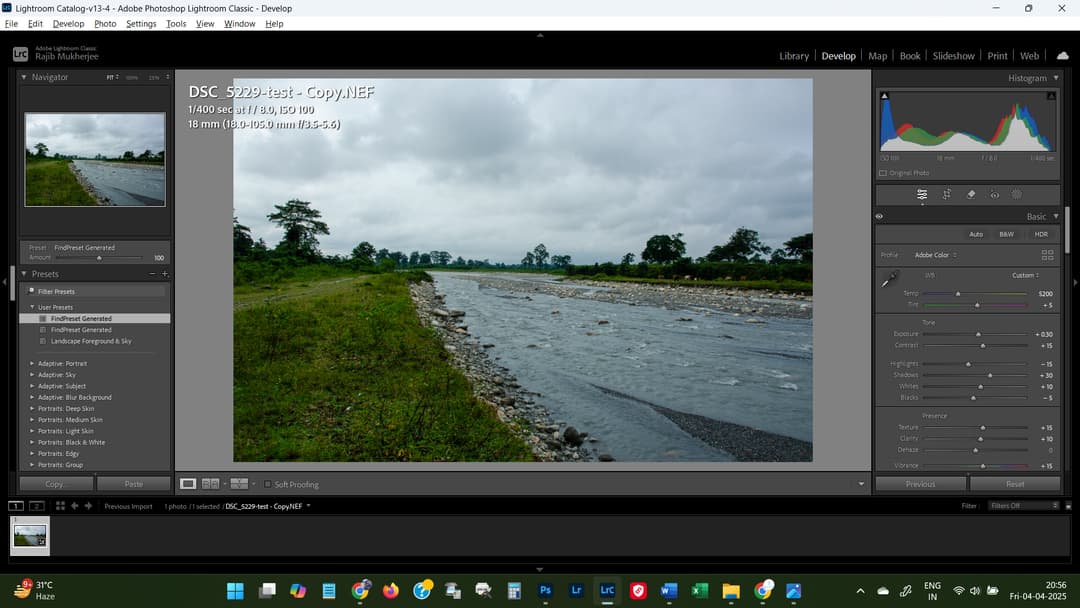
As you can probably see in the result, it is not the most accurate at all times, but it gives you a good base to start off. You at this stage probably you will have to do a few minor tweaks and your image would be pretty much what you want it to be.
Conclusion
Findpreset.com’s custom made preset creation option Is the closest thing that I have ever come across in terms of creating an accurate preset on demand. It takes most of the guesswork out of the equation and also saves a lot of time you would otherwise spend fine tuning AI prompts on other AI preset creation tools.
Can ChatGPT create Lightroom presets?
ChatGPT can create Lightroom presets however it is not designed specifically for that purpose. Therefore it is always a trial and error method.
What are the limitations of using ChatGPT for preset creation?
The process of creating a Lightroom Preset using ChatGPT takes several attempts to refine the prompt. This is always a long and tedious process.
Is there a better AI tool than ChatGPT for creating Lightroom presets?
Findpreset.com is a simple process that takes about half a minute to create a custom-made preset. It needs no prompt writing, gives you an XMP file to import, and is designed specifically for creating Lightroom presets.