
How to Get Lightroom Presets for Free
When it comes to editing photos in batches Lightroom presets can be a real lifesaver. For anybody who has ever been a professional photographer, shooting tons of images, you will understand the importance of having Lightroom presets that can replicate your favorite settings in just a mouse click.
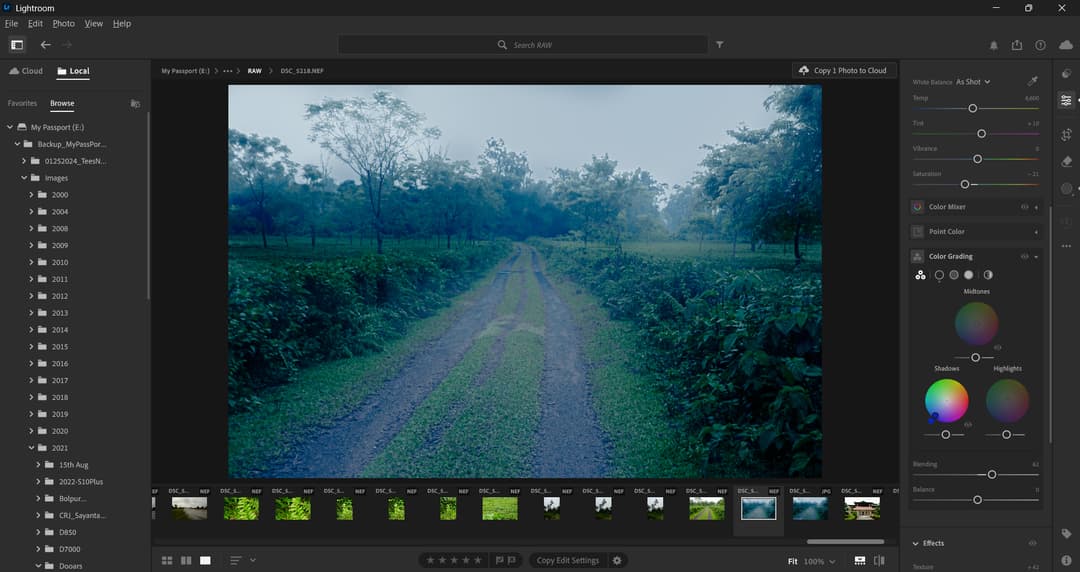
Getting your favorite Lightroom presets, however, isn’t easy. Most of the time you have to look hard to find presets that closely match your editing style, often ending up having to create a preset by hand yourself. While we will address that aspect of building a preset in a later discussion, today our focus will be on how to get Lightroom presets for free.
Download Lightroom presets for free from the Adobe community
One of the largest repositories and the easiest ways of getting a Lightroom preset for free is to download them from the Adobe community. To do that open Lightroom, click on View and then click on Community. The Community is like a daily dose of ideas that you can explore and improve on.
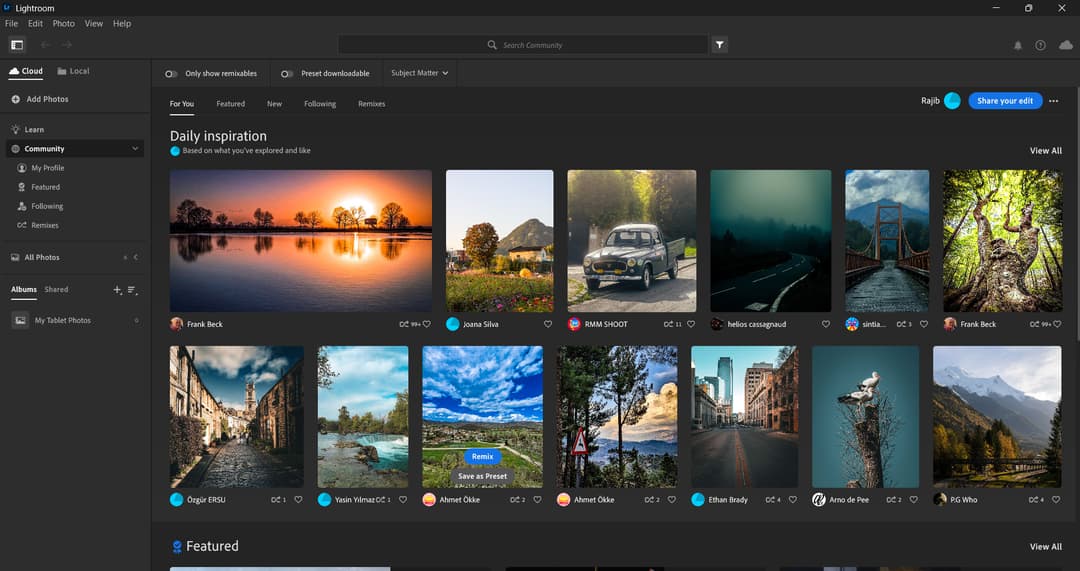
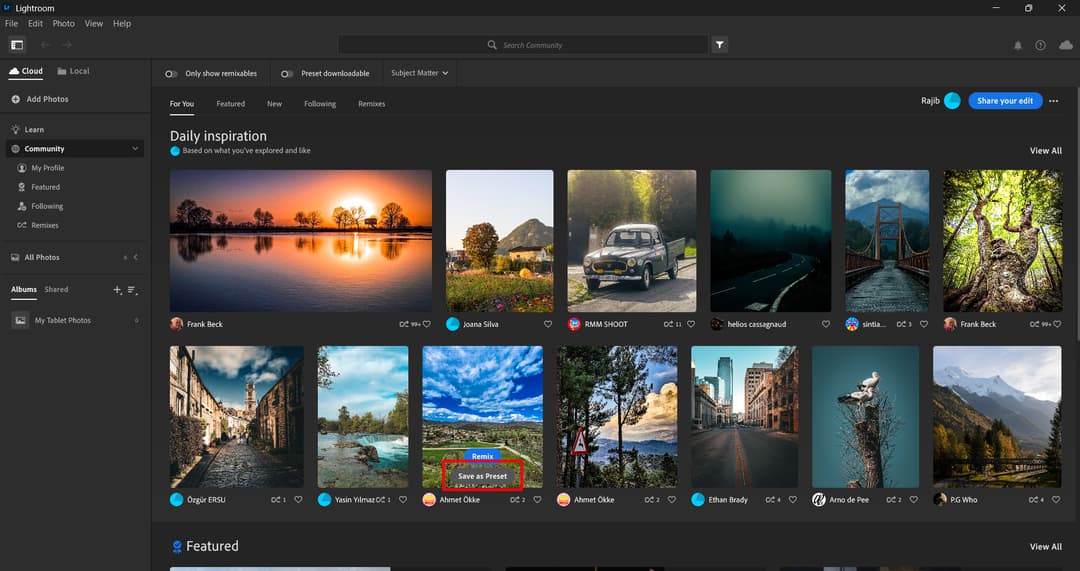
But the best thing about the Lightroom Community is that many of the images that you see there on the grid allow you to download the underlying preset used to edit them and save them on your Lightroom, a wonderful way of creating a fresh editing style based on something you like.
To do this simply hover your pen or mouse over any image and click on Save as Preset. Lightroom will ask you to save the preset under the Saved from Community tab of your preset gallery. You can choose to rename the gallery according to your preference and the preset will be available for you to apply for your next photo edit. Simple!
Websites offering free presets for Lightroom
Websites like presetlove.com, freepresets.com, behance.net and on1.com offer sets of free preset filters for Lightroom. What you have to do is search for free presets, download the XMP file, and import it into Lightroom.
ON1

We know ON1 as a powerful photo editing application that works as a standalone tool as well as a plugin that works with a host of other photo editing applications we are familiar with. However, there is another side to ON1 and one that offers a bunch of freebies, including Lightroom presets. ON1 collaborates with a bunch of photography websites such as Shotkit Contrastly, and Sleeklens to bring these Lightroom presets to you for free. All you have to do is register yourself on their website to download these presets.
Download from Phlearn.com

Phlearn is one of the largest online resources for premium tutorials on Lightroom and Photoshop retouching. What many people do not know is that Phlearn also has a large repository of Lightroom presets some of which are free for photographers to use. The best presets however are those which you can download for a small fee.
Contrastly.com

Contrasty offers a pack of 25 Lightroom presets that you can download when you sign up for a free account with them. The best, however, are neatly stashed away and available only for payment. But still, the 25 presets that they offer give you a good starting platform. Simply search for LR presets free download and the website will come up in search. Sign-up with them and the link to download the preset filters for Lightroom will be sent to you.
How to create your own preset in Lightroom
Creating your own preset is probably one of the best ways to have something that matches your editing style and preferences the closest. We will discuss the easiest ways to create a preset based on your style and preference towards the end of this discussion. For the moment let’s find out how to create a preset in Lightroom.
If you are familiar with the settings on Lightroom, it should be easy for you to create a preset that closely matches your editing style and preferences. Simply open a Lightroom (cloud version or desktop version), and pull an image into the develop module.
Step 1: Edit an Image as per Your Taste
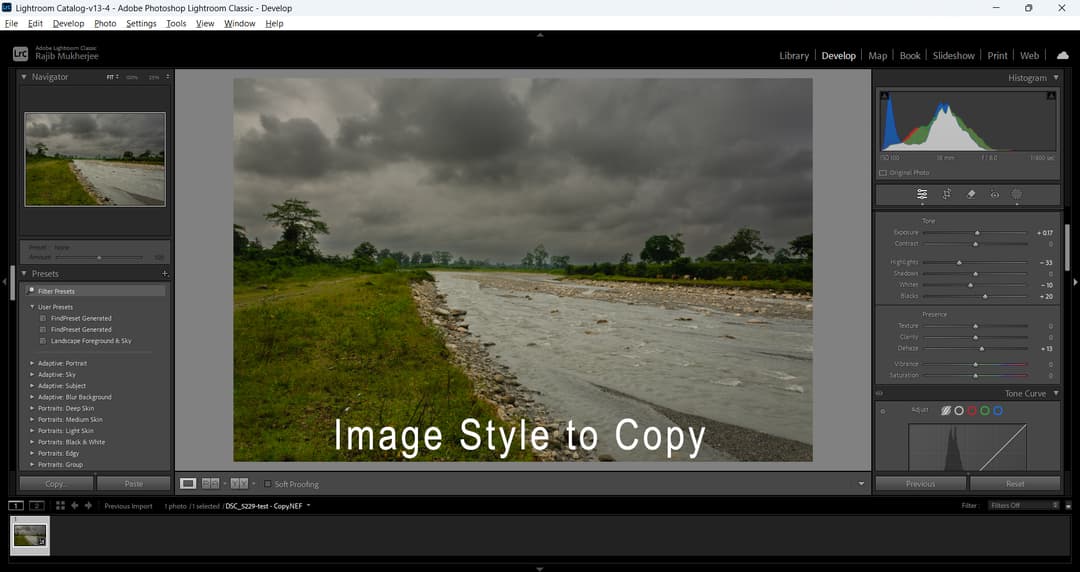
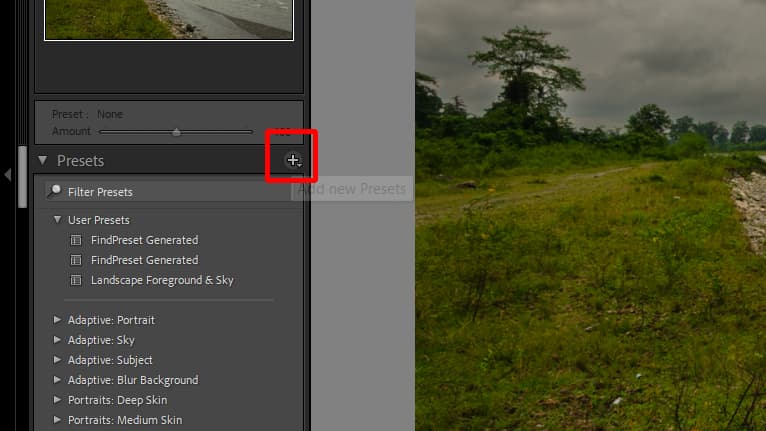
Step 2: Click on the Plus Icon on the Presets Panel
Now, start making the edits that you would like to make to the photograph. Once you’re happy with the edits click on the + on the presets panel on the left of the develop module.
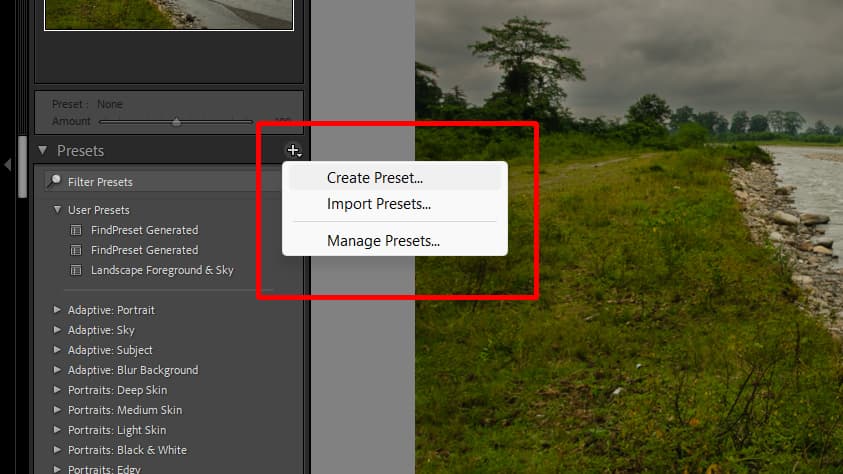
Step 3: Click on Create Preset
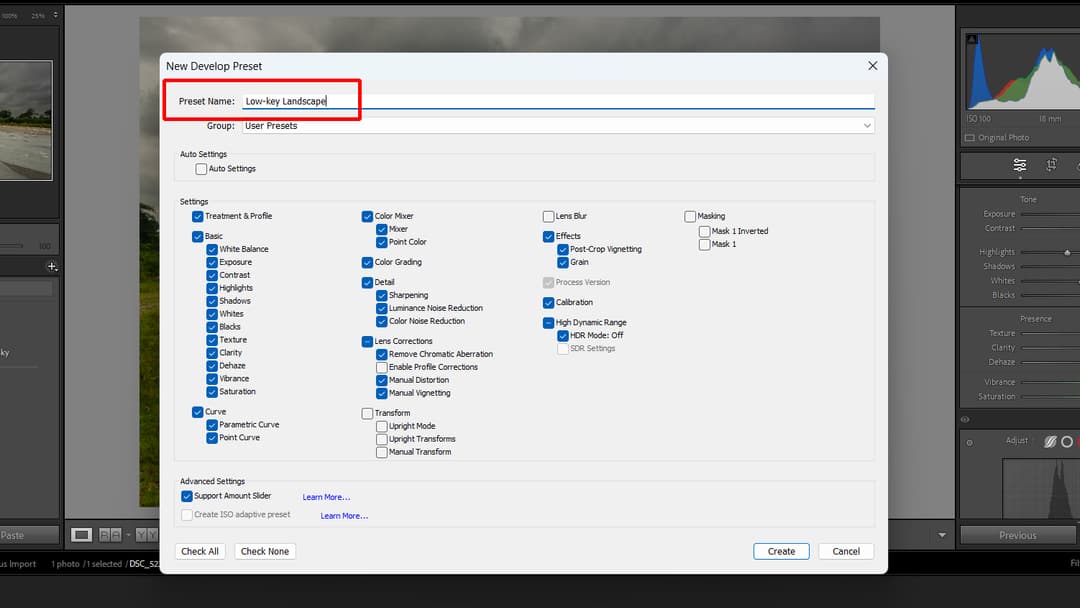
Step 4: Enter a Name for Your Preset
A pop-up will open up asking you to name the newly developed preset as well as the group under which you wish to save the preset.
Check or uncheck which of the settings you prefer to keep in the preset and click Create.
Step 5: Click on Create
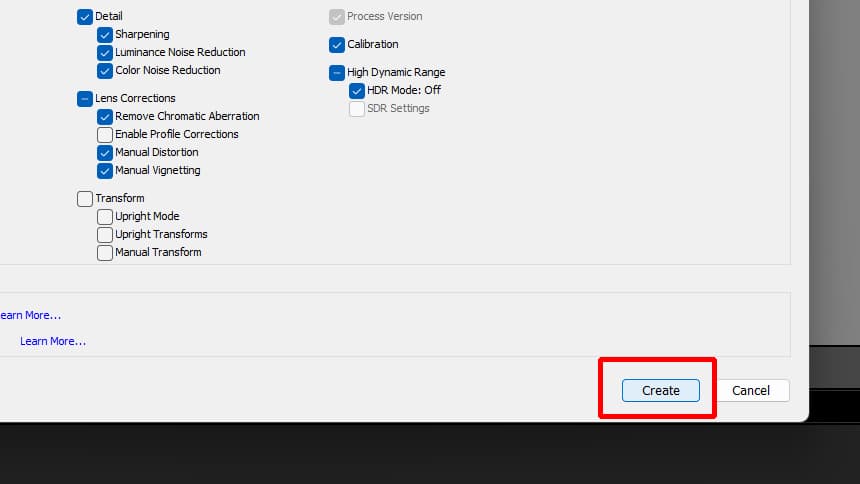
Your preset will be created and saved under the group and be ready for use.
To Use the Preset these are steps that you have to use:
Step 1
Open an image in Lightroom. Then click on the Develop Module.
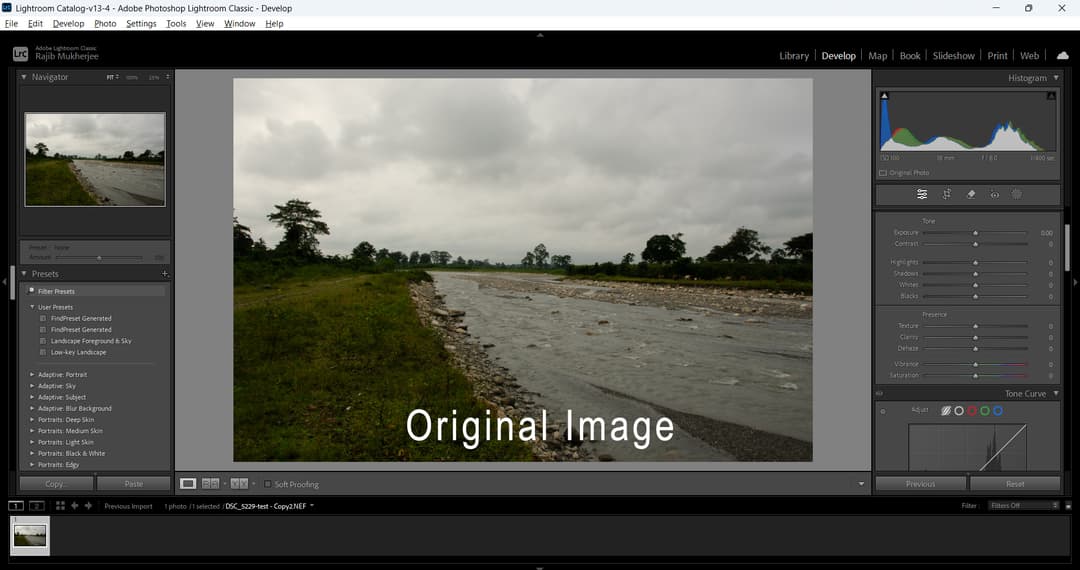
The above image is just a copy of the original image I used to create the preset.
Step 2
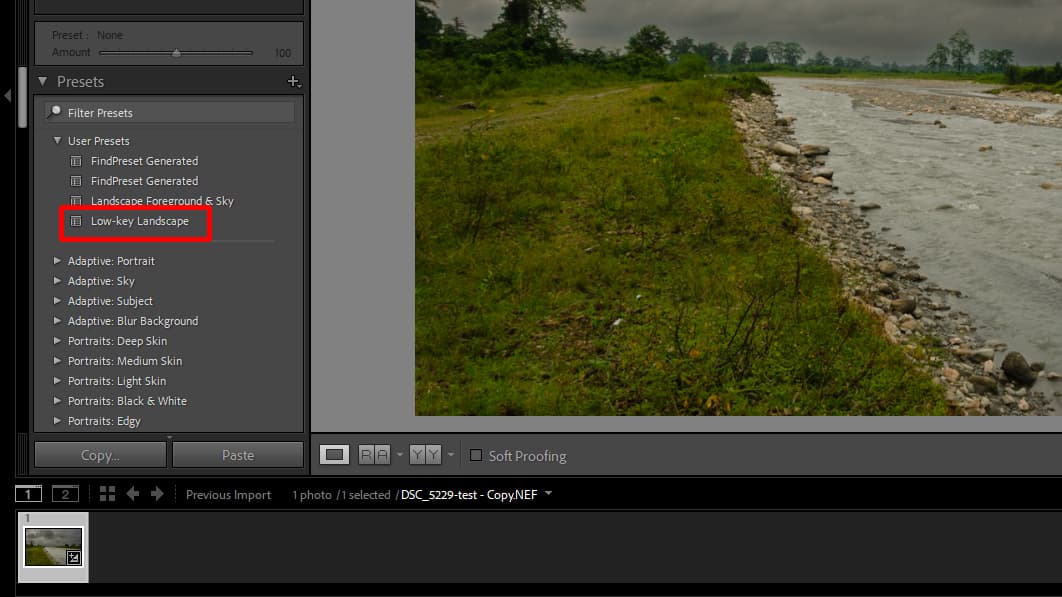
Click on the Preset name to apply.
Using Findpreset.com
This is probably the easiest of ways to get a preset done that’s tailor-made for you based on your tastes and preferences. Let’s say you are editing a batch of photos which you have shot at a wedding. You have a fixed lighting ratio and you want the final images to look a certain way. One way is to create a preset manually in Lightroom and then apply it to all your photos and fine-tune them. But what if you can simply upload one final image and rather than having to create the preset manually and you get a tailor-made preset done just for you? Findpreset.com does exactly that.
Is it possible to create a custom preset with AI by analyzing a photo I like?
Yes, it is possible! Findpreset.com allows you to do just that.
You can upload any of the most common image formats. Uploading an image into the tool will set off the automatic detection system. It will guess the colors, the exposure, the contrast and other editing parameters used to create the final image and then create a Lightroom preset that will mimic the editing parameters.
If the photo still carries its Lightroom settings, FindPreset reads them exactly, and that is free. When those settings are gone, it recreates the look with AI.
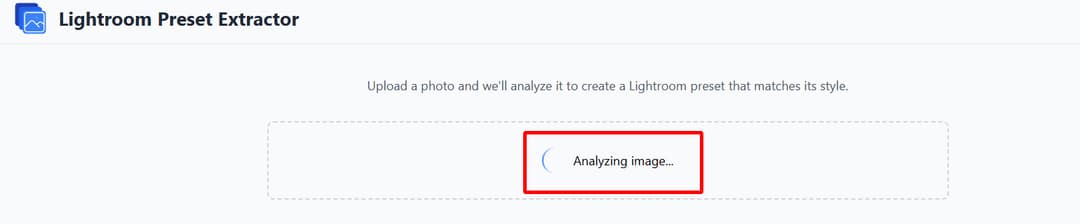
The tool will then create a custom Lightroom preset which you can download as an .XMP file. You can now take this preset into Lightroom, install it and you’re ready to use it for your next batch of photo edits. The best thing about this tool is that it takes very little effort from your end to get a Lightroom preset tailored to the look of the photo you picked.
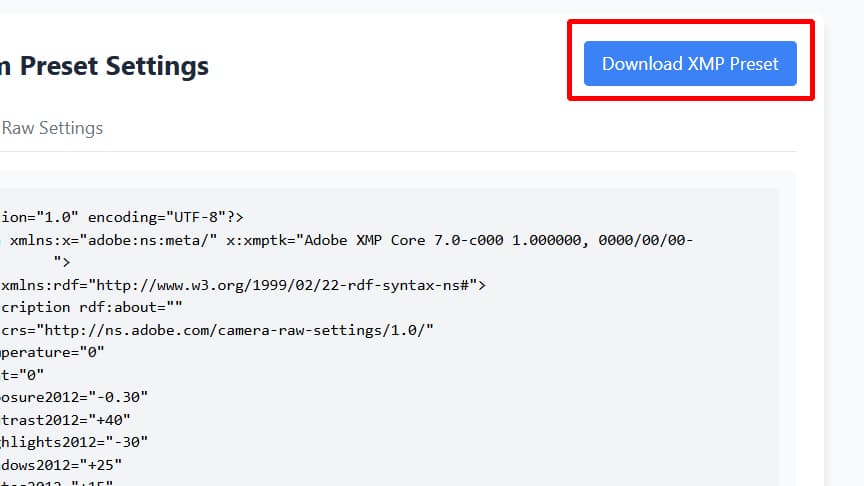
What are the biggest benefits of using Findpreset.com is that you can select any image and it doesn’t have to be an image that you have edited, it can be any image you like on the Internet and wish to replicate the same editing style for your photos, this tool works out the editing parameters and creates a preset for you.
Frequently Asked Questions
Are the Lightroom presets really free to use?
Presets you download from FindPreset are yours to use and share. Reading one from a photo that still carries its Lightroom settings is free.
How do I install the downloaded Lightroom presets from Findpreset.com?
Once you’ve downloaded the preset (an .XMP file), open Lightroom, go to the Develop module. Then click on the Presets panel, and then click the “+” icon to choose Import Presets. Select your downloaded file, and it will appear in your Presets list.
Can I use the same presets on Lightroom Mobile as well?
As long as you have your Lightroom mobile synced with your desktop version you will be able to access any preset that you install on your Lightroom desktop version on your Lightroom mobile.