
How to add presets to Lightroom on desktop, mobile and iPad
Just bought a preset pack and wondering how to add presets to Lightroom, on your phone or your computer? Unzip the pack if it came as a ZIP, open a photo, and choose Import Presets from the menu in the Presets panel: on any device it’s a few minutes’ work. Below are the exact steps for iPhone, iPad, Android, Lightroom desktop and Lightroom Classic, checked against Adobe’s help in October 2026, a short video for Lightroom Classic, and fixes for presets that won’t show up.
First, check which preset files you have
Open the folder or ZIP the seller sent and look at the file endings. Preset packs come in four shapes, and not every Lightroom app takes every one:
- .xmp: the current preset format, one small settings file per look. You can add it to all three Lightroom apps, so pick it when a pack offers a choice.
- .lrtemplate: the older Lightroom Classic format. Lightroom Classic and Lightroom mobile still accept it. Adobe’s Lightroom desktop help doesn’t cover it.
- .dng: a “DNG preset”, which is a photo with the settings stored inside. Lightroom mobile adds it like any preset file, and every Lightroom app can open it as a photo and save its settings as a preset.
- .zip: a pack, not a preset. Lightroom mobile can’t open archives, so you extract it first. Lightroom Classic imports a ZIP of XMP files directly, but not .lrtemplate files inside a ZIP.
Which file goes where? Pick your file type to see what each Lightroom app does with it:
.xmp All three apps
Preset settings only. The current format.
.lrtemplate Mobile and Classic
The older Lightroom Classic format.
.dng Mobile, or as a photo
A photo with the preset’s settings inside.
.zip Extract first on mobile
A pack of preset files, not a preset.
Menu names from Adobe’s Lightroom help pages, checked 23 October 2026.
If a pack has both XMP and DNG versions, use the XMP files and keep the DNGs as a backup. Still building a collection? Here’s where to get Lightroom presets for free.
How to import presets into Lightroom, app by app
The app you edit in decides the steps more than the device does. Lightroom desktop (the app Adobe now simply calls Lightroom) and Lightroom mobile share presets through Adobe’s cloud, so with a paid plan you install once and see them everywhere. Lightroom Classic keeps its presets on your computer and doesn’t sync them, which is why the question of how to install Lightroom presets has three answers.
Which install route is yours? Pick the app you edit in, then follow its import menu:
iPhone or iPad Syncs to desktop
- Open a photo
- Presets
- Yours
- Options
- Import Presets
In Lightroom mobile (iOS). Unzip a ZIP first in the Files app. New presets appear under Yours > User Presets.
Android phone or tablet Syncs to desktop
- Open a photo
- Presets
- Options
- Import Presets
In Lightroom mobile (Android). Extract a ZIP first with your phone’s file manager. New presets appear under Yours > User Presets.
Lightroom desktop Syncs to mobile
- File
- Import Profiles & Presets
Adobe’s tutorial also shows a second way in: the three-dot menu at the top of the Presets panel, then Import Presets.
Lightroom Classic This computer only
- Develop
- Presets panel
- +
- Import Presets
Open a photo in the Develop module first: Classic only lists presets once there are photos in the catalog.
Only have DNG files Works everywhere
- Add the DNG as a photo
- Open it
- Create Preset
In Lightroom desktop and Classic, Create Preset is in the Presets panel menu. Lightroom mobile’s Import Presets also takes DNG files directly.
The Android robot is reproduced or modified from work created and shared by Google and used according to terms described in the Creative Commons 3.0 Attribution License.
Sync between Lightroom desktop and Lightroom mobile needs the same Adobe ID on both and a plan that includes sync. Lightroom Classic syncs photos, but not presets. Steps from Adobe’s Lightroom help, October 2026.
How to add presets to Lightroom mobile on iPhone and iPad
Lightroom on iPad uses the same app and the same steps as on iPhone. These follow Adobe’s iOS instructions for adding presets to Lightroom mobile, last updated in June 2026:
- Save the preset files to your iPhone or iPad, or to cloud storage such as iCloud Drive. If they came as a ZIP, open the Files app and tap the ZIP to unpack it.
- Open Lightroom mobile and tap any photo to open it in Detail view.
- Tap Presets in the Edit panel.
- Tap the Yours tab, then the Options menu (the three dots), and choose Import Presets.
- Browse to the folder with your .xmp, .dng or .lrtemplate files, select them and tap Select.
- Find the new looks under Yours > User Presets.
Install presets in the Lightroom app on Android
The Android app works the same way with one small difference: in Adobe’s Android steps, Import Presets sits straight in the Presets panel’s Options menu, without picking Yours first.
- Download the preset files to your phone or to cloud storage, and extract any ZIP with your phone’s file manager.
- In Lightroom mobile, open a photo in Detail view and tap Presets in the Edit panel.
- Tap the Options menu and choose Import Presets.
- Select the files and tap Select. They appear under Yours > User Presets.
Lightroom desktop: install once, use everywhere
On a computer, Lightroom desktop is the best place to install a big pack: whatever you add there syncs to your phone and tablet.
- In Lightroom desktop, choose File > Import Profiles & Presets from the menu bar. Adobe’s tutorial also shows a second way in: the three-dot menu at the top of the Presets panel, then Import Presets.
- Select the preset files, or a whole folder. Adobe’s tutorial says the desktop app can import a ZIP of presets without unzipping it.
- Click Import. Open Presets in Edit view (Shift+P) and you’ll find the looks in a User Presets group.
Also use Lightroom Classic on that computer? According to Adobe’s presets and profiles FAQ, Lightroom desktop copies Classic’s installed presets and profiles on its first launch. Anything you add to Classic later needs installing again.
How to add presets to Lightroom Classic
In Lightroom Classic you add presets from its Develop module. These steps match Adobe’s page on applying presets in Lightroom Classic, updated on 13 October 2026:
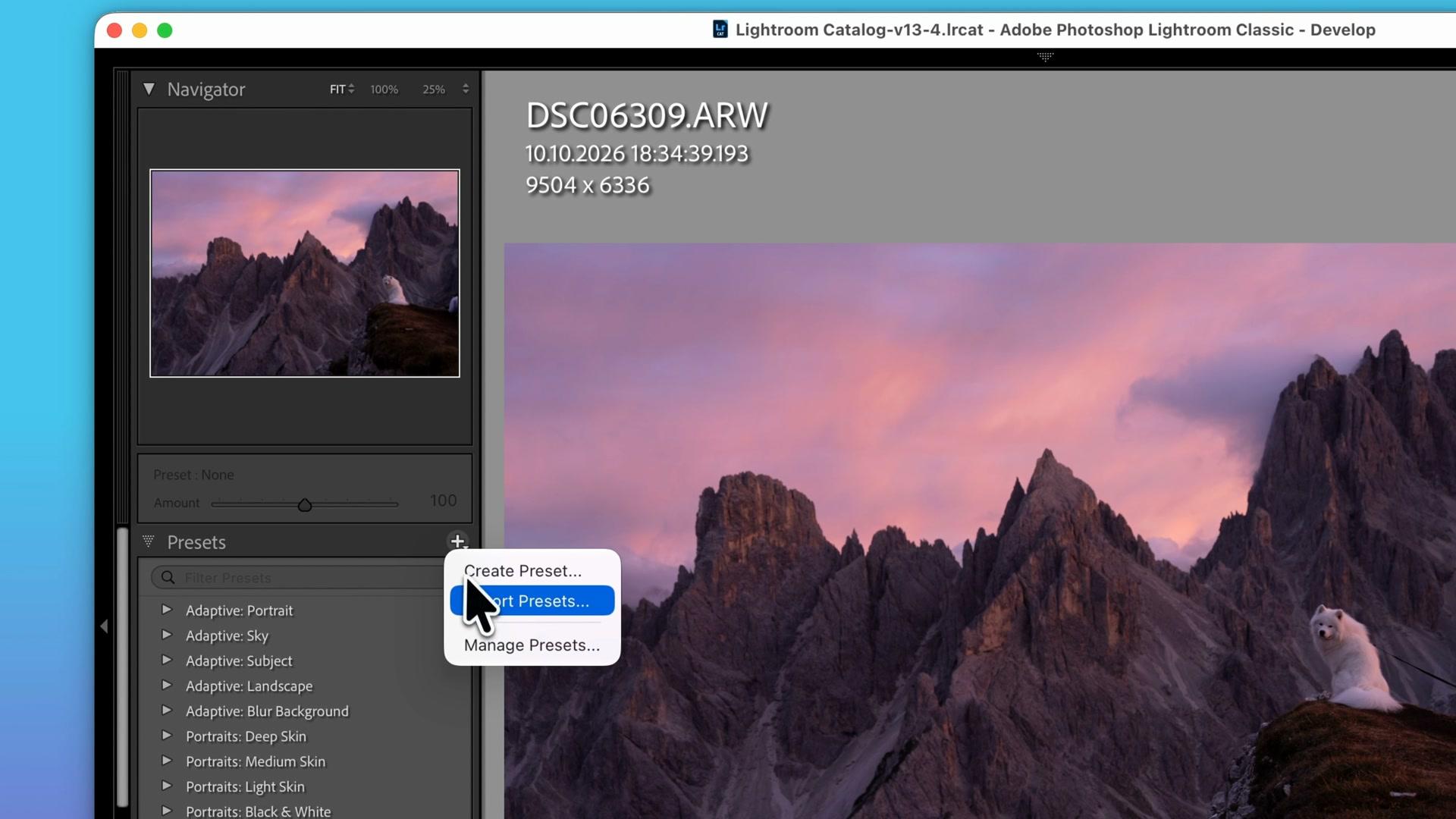
- Open any photo in the Develop module. Adobe notes that Classic only lists presets once there are photos in the catalog.
- In the Presets panel on the left, click the plus (+) icon and choose Import Presets.
- Select the .xmp or .lrtemplate files, or a ZIP of XMP presets. Leave .lrtemplate files out of ZIPs: Classic won’t import them that way.
- Click Import. The presets appear in the User Presets group.
Still on Lightroom 6 or older? Adobe’s presets FAQ says those versions can’t import XMP presets, so ask the seller for .lrtemplate files.
Sync presets between Lightroom desktop and mobile
If you’ve wondered how to install Lightroom presets once and use them on every device, this is it. Adobe’s help says presets, including third-party presets you bought, sync automatically between Lightroom desktop and Lightroom mobile when:
- Both apps use the same Adobe ID. On mobile, the account email shows under your name in the app’s settings or menu.
- Your plan includes sync. Adobe lists sync across devices among Lightroom’s Premium features, and suggests checking what a mobile-only plan includes.
- Sync has finished. Adobe suggests checking Lightroom on the web to confirm the presets reached the cloud.
Lightroom Classic is the exception. It syncs photos with Lightroom mobile, but not presets. Adobe’s documented way runs through Lightroom desktop: add the same .xmp files there and they sync on, or export them from Classic first (right-click a preset and choose Export). Going the other way, Adobe says to sync mobile presets to Lightroom desktop, export them there and import them into Classic.
DNG presets: the other way in
A DNG preset is a photo file carrying Lightroom settings, and for years it was the easiest way to get a preset into the mobile app. Our guide what is a DNG file explains what’s inside one. Lightroom mobile’s Import Presets takes DNG files directly, and Adobe still documents the older method for importing DNG presets in Lightroom mobile:
- In Lightroom mobile, tap the Add photos icon, select the DNG and tap Add.
- Open it in Detail view. Adobe notes that DNG presets may show a file load error at this point: keep going.
- Tap the Options menu and choose Create Preset.
- Name it, pick a group, and tap the Done check mark.
In Lightroom desktop and Lightroom Classic the idea is the same: add the DNG as a photo, then choose Create Preset from the Presets panel menu. One catch: Adobe’s Default selection in the mobile Create Preset screen leaves out masking, lens blur and geometry. If the look depends on masks, choose All in the Select menu.
Prefer an XMP file you can install anywhere? Upload the DNG preset to FindPreset. When the file carries Lightroom settings, the exact extraction reads them out and gives you an XMP preset, free and without an account.
Turn your DNG preset into an XMPExact extraction is free, no account needed.
Apply a preset to one photo or many
One photo. In every Lightroom app you open a photo, open Presets and tap or click a look. On Lightroom mobile the presets you add live under Yours; tap the applied preset’s thumbnail for the Amount slider, then tap Done. Lightroom desktop (0 to 200) and Lightroom Classic have an Amount slider too.
Many photos. Here’s how to apply a preset to multiple photos in each app:
- Lightroom Classic, Library module: select photos in Grid view and choose the preset from the Saved Preset menu in the Quick Develop panel.
- Lightroom Classic, Develop module: apply the preset to one photo, select the others in the Filmstrip, then click Sync (or Settings > Sync Settings), choose the settings and click Synchronize.
- Lightroom Classic, on import: pick the preset in the Develop Settings menu of the Apply During Import panel, and new photos arrive with it applied.
- Lightroom desktop: open an album in Grid view, select the photos, open Presets, click the preset and confirm with Apply. Or use Photo > Copy Edit Settings, select the others and choose Photo > Paste Edit Settings.
- Lightroom mobile: apply the preset to one photo, tap the More menu and choose Copy Settings, then select photos in the grid and choose Paste edits. Adobe lists batch editing among the mobile Premium features, so pasting onto many photos at once may need a paid plan.
Presets missing, greyed out or “unsupported”? Fixes
Run through this list before you write to the seller:
Greyed out or in italics
Partially compatible with this photo, often a raw-only profile on a JPEG. Try a raw photo, or turn on Show Partially Compatible Presets.
Not in the list
Look under Yours > User Presets on mobile, or User Presets on a computer.
Group hidden
Open Manage Presets from the Presets panel menu and switch the group back on.
Import fails on a phone
Extract the ZIP first. Lightroom mobile can’t open compressed archives.
.lrtemplate files in a ZIP
Extract them. Lightroom Classic imports XMP presets from a ZIP, not .lrtemplate files.
DNG shows a load error
Expected, says Adobe. Carry on, open it and choose Create Preset.
Missing in one Classic catalog
Turn off Store presets with this catalog in Lightroom Classic’s Presets preferences.
Not syncing to the phone
Same Adobe ID on both apps and a plan with sync. Lightroom Classic never syncs presets.
Eight checks that fix most preset install problems, based on Adobe’s Lightroom help pages. The sections below go into each one.
Preset greyed out or in italics
Lightroom marks presets that only partly fit the current photo in italics, and Lightroom Classic also fades them. Typically the preset uses a profile meant for raw files while your photo is a JPEG, or a profile made for another camera. Try a raw photo first. To list every preset anyway, turn on Show Partially Compatible Presets in the Options menu of Lightroom mobile’s Presets panel. In Lightroom Classic it’s Show Partially Compatible Develop Presets, under Edit > Preferences > Presets on Windows or Lightroom Classic > Preferences > Presets on a Mac.
Preset missing after import
- Look in the right group: Yours > User Presets on mobile, User Presets in Lightroom desktop and Classic.
- Check for hidden groups: open Manage Presets from the Presets panel menu and switch the group back on.
- Using several Classic catalogs? If Store presets with this catalog is ticked in Classic’s Presets preferences, presets only appear in the catalog you imported them into.
- Is it a profile? Some .xmp files are profiles, not presets. Profiles live in the Profile browser, not the Presets panel.
Import fails or says the file is unsupported
Extract ZIPs before installing them on your phone, and keep .lrtemplate files out of ZIPs in Classic. A .dcp or .lcp file is a camera or lens profile, not a preset. And a DNG preset that shows a load error on mobile is normal, as Adobe notes: carry on with Create Preset.
Presets not syncing
Check that both apps use the same Adobe ID and that your plan includes sync. With Use Cellular Data switched off, Lightroom mobile syncs only over Wi-Fi: on iPhone and iPad the switch is under Lightroom > Cloud Storage & Sync, on Android under Menu > Preferences. And don’t reinstall the app while presets are still waiting to sync: Adobe notes that unsynced presets can go missing after a reinstall, and that clearing the app’s data deletes them.
Have a photo you like? Get its preset
Installing presets is the easy part. Finding the look behind a photo you love is harder. If that photo was exported from Lightroom with its metadata kept, its develop settings are often still inside the file. Upload it to FindPreset and the exact extraction reads them and hands you an XMP preset to install with the steps above, free. Photos with no editing data, such as screenshots and most Instagram downloads, can go through AI extraction instead, which estimates the settings, so the result is an approximation rather than an exact copy.
Our guide to making a preset from a photo walks through both.
Frequently asked questions
Can you add presets to Lightroom mobile for free?
Yes. Adobe doesn’t list preset import among the mobile Premium features, which include sync across devices, masking, geometry tools, batch editing and raw editing. Syncing presets from your computer needs a paid plan, and the masks or other Premium adjustments inside a preset may need one too.
Do Lightroom presets work on iPad?
Yes. Lightroom on iPad is the same app as on iPhone, so the iOS steps apply: Presets, Yours, the Options menu, Import Presets. On a plan with sync, presets you add in Lightroom desktop also appear on the iPad.
Why does a preset look different on my photos than in the seller’s examples?
A preset stores slider values tuned for the seller’s photos, not for yours. Exposure and white balance usually need a small tweak after applying, and the Amount slider lets you turn the whole look up or down. Adobe even suggests leaving the Light settings out when you create presets for this reason.
Can I use my Lightroom Classic presets on my phone?
Not through Classic itself: Lightroom Classic doesn’t sync presets. Add the same .xmp files to Lightroom desktop, which syncs them to Lightroom mobile, or import them on the phone with Import Presets.
Should I use the XMP or the DNG version of a preset pack?
Use XMP when you can: it’s a small settings file that all three Lightroom apps take directly. DNG presets are photos with settings inside, mainly meant for phones, and work as a fallback.
Sources
- Adobe: Import and export presets in Lightroom on mobile, the iOS and Android import steps, supported file types and the ZIP rule.
- Adobe: Import DNG presets in Lightroom on mobile, the Add photos and Create Preset steps and the expected load error.
- Adobe: Apply Presets in Lightroom Classic, importing, ZIP limits and partially compatible presets.
- Adobe: Develop module options and the Quick Develop panel, syncing settings and applying presets to many photos in Classic.
- Adobe: Lightroom Classic Presets FAQ, missing presets, the catalog setting and Lightroom 6.
- Adobe: Install presets and profiles in Lightroom FAQ and Add and sync Lightroom desktop presets to mobile, the desktop import menu, migration and sync.
- Adobe: Edit photos with presets in Lightroom and Edit photos in Lightroom, batch-applying presets, copy and paste, and the note that presets don’t sync with Classic.
- Adobe: Import presets from other creators, the desktop Presets panel steps and ZIP import.
- Adobe: Copy and paste edits, hiding partially compatible presets, missing photos and presets, cloud storage and sync and the Lightroom on mobile FAQ, all for Lightroom mobile.
- All Adobe pages read on 23 October 2026.