
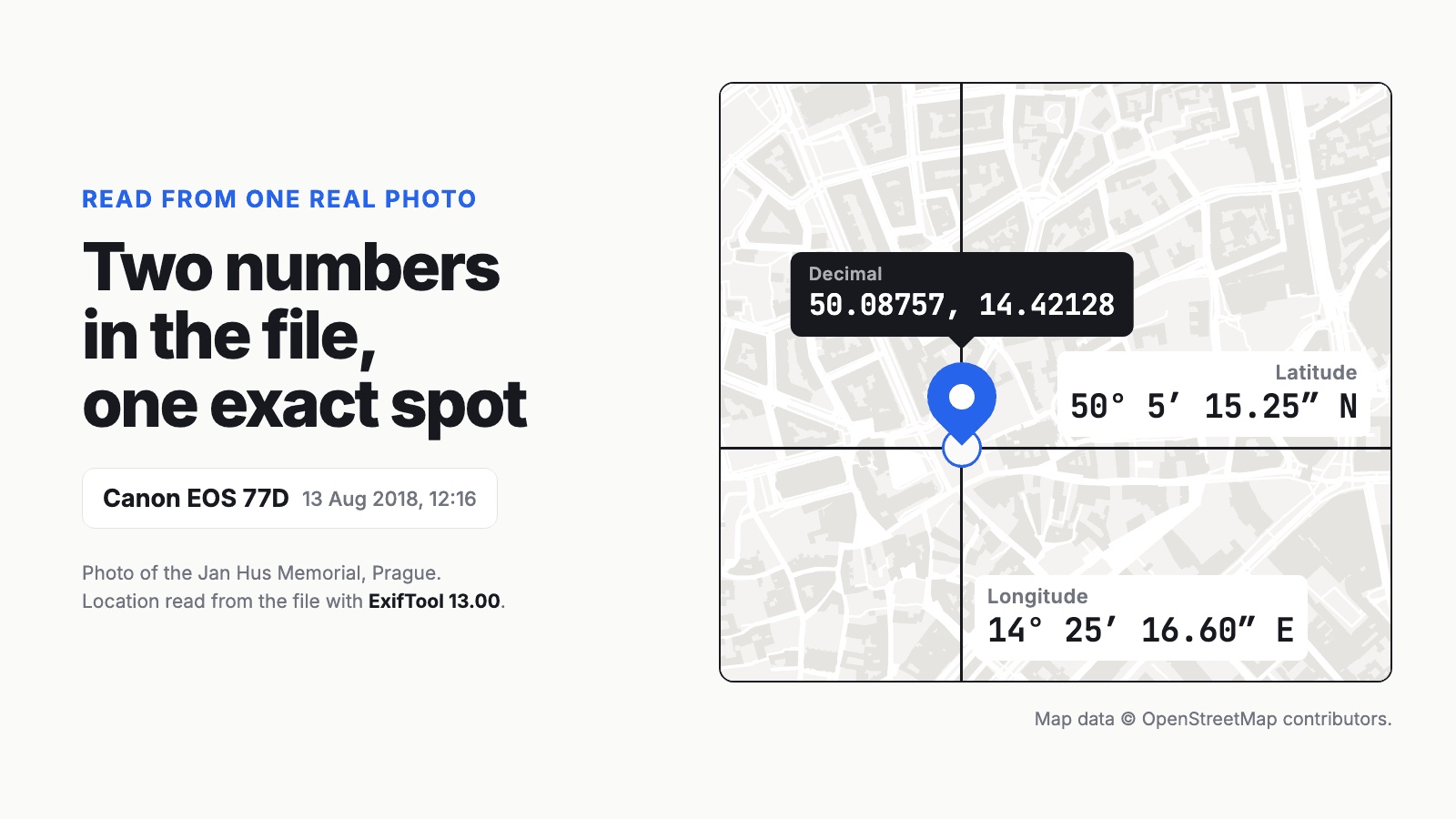
Where was this photo taken? How to find out, and why it usually fails
Where was this photo taken? Start with the file itself: many phone photos store the exact GPS position from the moment they were shot, and you can read it with our free photo location finder or with tools already on your phone or computer. If it shows nothing, the location was most likely removed when the photo was shared. Further down we cover which clues still work then, how far AI location guessers can be trusted, and how to keep your own photos from giving away where you live.
Check the photo’s GPS data first
The quickest check: drop the original file into our photo location finder. It reads the location saved in the photo without uploading it and shows the spot on a map, with the date and camera. If there is no location, it says what usually removes one.
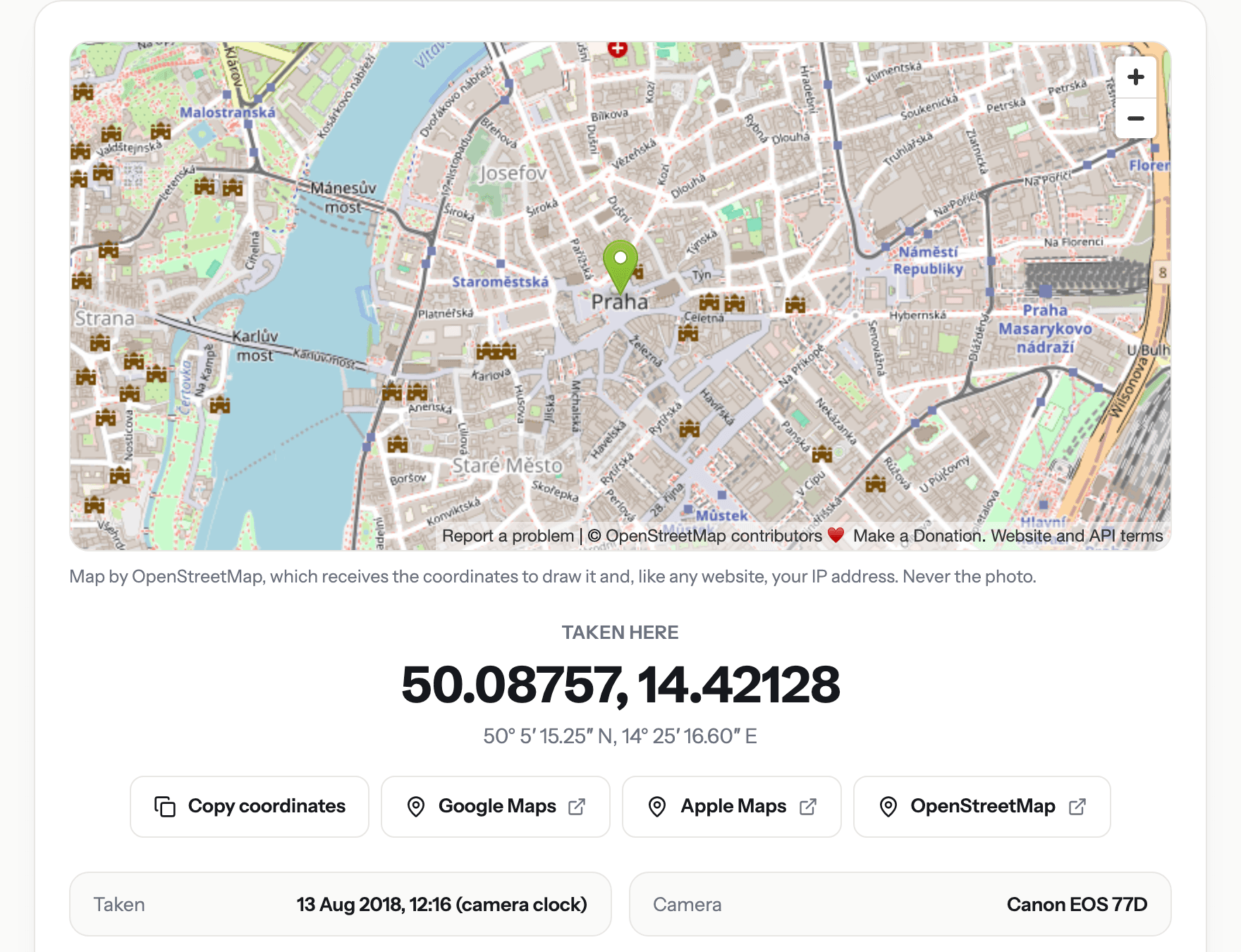
Find where your photo was takenFree, no signup. Your photo is never uploaded.
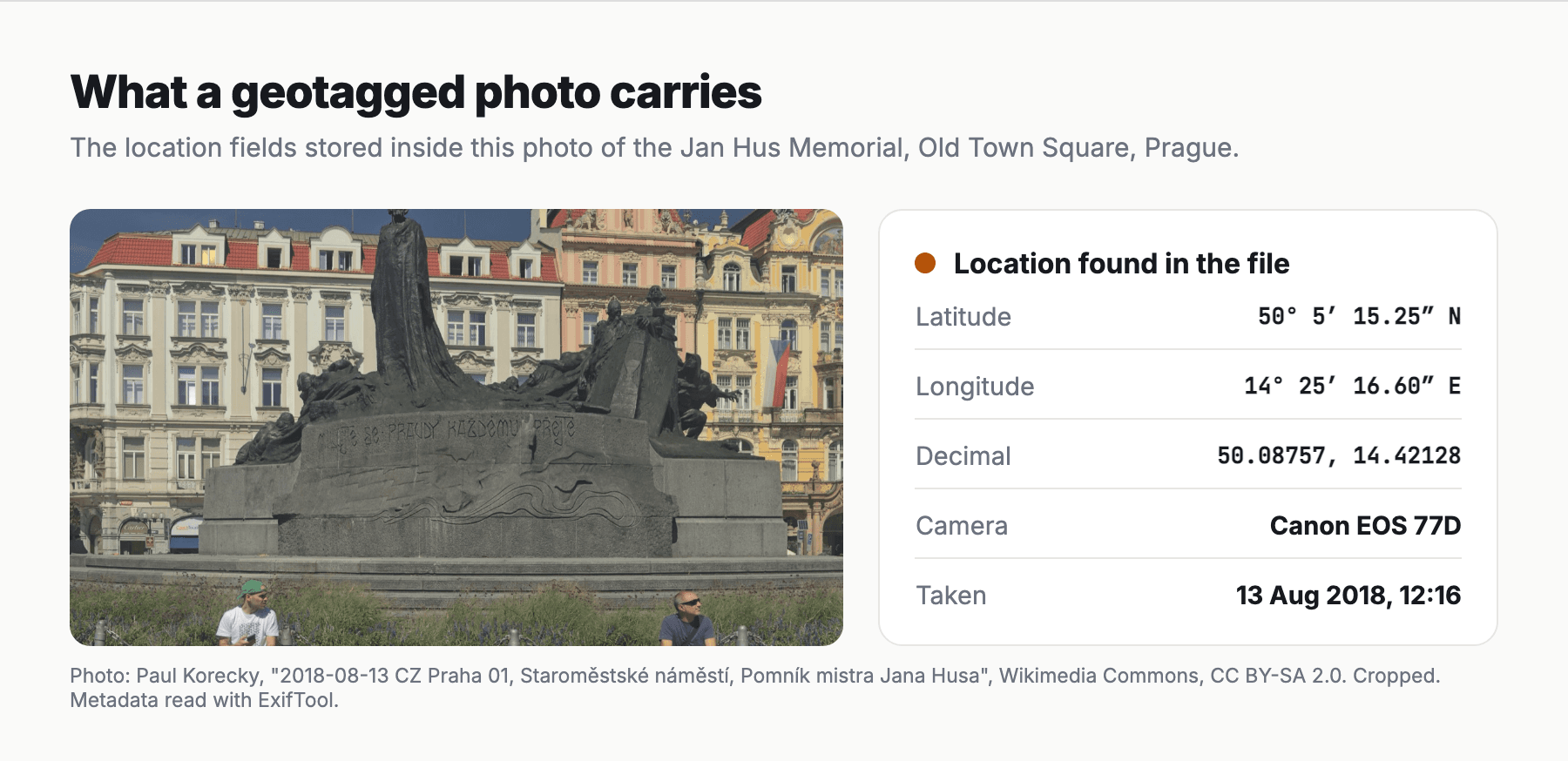
A photo’s location lives in its metadata, the hidden information saved alongside the picture. When a phone’s camera has location access, it writes the latitude and longitude into every photo, often with the altitude and the direction the camera was facing. Here’s what that looks like in a real file, a photo of the Jan Hus Memorial in Prague’s Old Town Square:
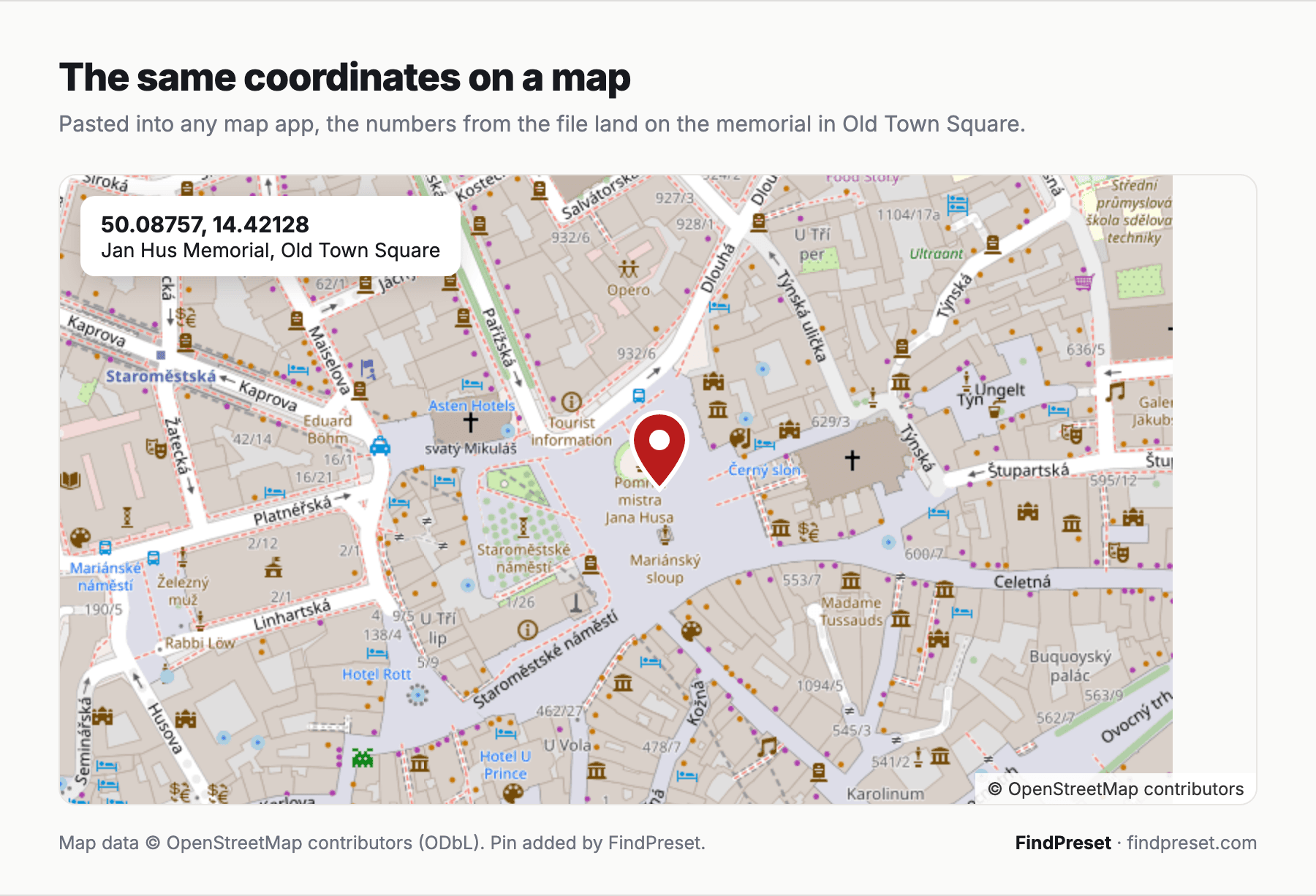
Paste those two numbers into any map app and you land on the memorial itself:
You don’t need special software to read a photo’s location, as long as you have the original file:
- iPhone or iPad: open the photo in Photos and swipe up, or tap the info button. If the file has a location, a small map appears.
- Android: in Google Photos, open the photo and swipe up to see its details and map. Other gallery apps have a similar details view.
- Windows: right-click the file, choose Properties, then the Details tab. The GPS section shows latitude and longitude.
- Mac: open the photo in Preview, choose Tools, then Show Inspector, and look for the GPS tab with a map.
- Any computer: the free command-line tool ExifTool prints every location field a file contains.
How exact is it? According to the US government’s GPS.gov, GPS-enabled smartphones are typically accurate to within about 4.9 metres (16 feet) under open sky, and less accurate near buildings, bridges and trees. It records where the camera was, not where the subject is: a photo of a mountain taken from a valley shows the valley.
Why most photos have no location data
If you checked and found nothing, you’re in the majority. Most photos people come across online have no GPS data left, for one of four reasons:
- Social media usually removes it. Large platforms such as Instagram, Facebook and X generally strip location metadata from the photos they publish, and messaging apps often do when they compress a photo. Don’t count on it for your own photos: it varies by app and by how you share.
- The camera never saved it. Location access for the camera may be switched off, and most standalone cameras have no GPS at all.
- It’s a screenshot. A screenshot is a brand new image, so it never had the original photo’s location.
- It was edited or exported without metadata. Many editors and export settings drop location data on purpose.
The flip side matters too: photos sent as original files, by email attachment, cloud link, USB stick or memory card, usually keep their location. That’s the case to watch with your own pictures.
At a glance, here’s where a photo’s location survives and where it’s lost:
Sent as the original file Usually kept
Email attachment, cloud link, USB or card copy.
Posted to social media Usually removed
Most large platforms remove location metadata from uploads.
Screenshot or re-saved copy Not there
A screenshot is a new image. It never had the original’s location.
Location off when taken Not there
Nothing was saved, so nothing can be read later.
No GPS? What you can still learn
Without coordinates in the file, you’re no longer reading data, you’re investigating. These methods work best together:
- Reverse image search. Google Lens and TinEye look for the same or similar images online. If the photo appeared on a news site, a travel blog or a property listing, the page often names the place.
- Visual clues. Street signs, shop names and the language they’re in, licence plate formats, road markings, which side of the road cars drive on, architecture, plants and the weather all narrow it down.
- Light and shadows. The direction and length of shadows hint at the time of day and roughly how far north or south the place is. It’s slow work, but it rules places out.
- AI geolocation tools. Some sites now guess a location from the picture alone. Treat their answer as an estimate, not proof: they’re confident whether they’re right or wrong, and a guess that looks plausible can be hundreds of kilometres off. Check any suggestion against street-level imagery before you rely on it.
The difference between these and GPS data is important. Coordinates in the file are a measurement. Everything in this section is an inference, however convincing it looks.
How to remove location from your own photos
The same data that helps you find where a photo was taken can show strangers where you live, work or park your car. Turning it off is quick:
- iPhone, when sharing: in the share sheet, tap Options at the top and turn off Location. The recipient gets the photo without its coordinates.
- iPhone, for all new photos: go to Settings, Privacy & Security, Location Services, Camera, and choose Never. Apple explains the setting in its Location Services guide.
- Android: open the camera app’s settings and turn off the location tag option (the name differs by phone; look for something like “Save location” or “Location tags”). In Google Photos you can also see and edit a photo’s location.
- Windows: right-click the photo, choose Properties, then Details, and click “Remove Properties and Personal Information”.
- Mac: in the Photos app, select the photo and choose Image, Location, Hide Location before you share it.
Here’s our sample photo’s data before and after its location was removed. The picture is identical, the camera details are still there, and the coordinates are gone:
Original file Location found
The location fields in our sample photo, read with ExifTool 13.00.
After removing it No location
Same file, same pixels. Only the GPS fields were deleted, and the camera details are still there.
Location isn’t the only thing photos carry. Camera files can include the model, serial number and even how many photos the camera has taken, which our shutter count checker reads, and edited photos can keep their Lightroom settings, which our preset extractor reads. If you’re selling a camera, check your listing photos before you post them: what buyers look for in a used camera includes the count, but not your home address. Raw formats keep the most of all: here’s what a DNG or raw file contains.
Is it OK to look up where a photo was taken?
Reading the metadata of a photo someone sent you, or one that’s public, is legal in most places and often useful: checking where a viral photo really comes from, confirming a holiday rental is where the listing says, or finding the spot you’d like to visit yourself. The line is what you do with the answer. Don’t use a location to find, follow or turn up on someone who didn’t invite you, and think twice before publishing where someone else’s photo was taken. If a photo is part of a news story or a scam you’re trying to expose, pair the location with other checks, such as whether the image was generated by AI.
Frequently asked questions
Can you find where a photo was taken without GPS data?
Sometimes. A reverse image search can find the same photo on a page that names the place, and visual clues such as signs, licence plates and architecture can narrow it down. Neither is as reliable as coordinates stored in the file.
Does Instagram or WhatsApp keep photo location?
Instagram generally removes location metadata from the photos it publishes. In WhatsApp it depends how you send it: a normal, compressed photo usually loses it, while a photo sent as a document arrives as the original file, location included. A location tag you add yourself on Instagram is separate and visible to everyone who can see the post.
How accurate is photo GPS data?
Under open sky, GPS-enabled phones are typically accurate to within about 4.9 metres (16 feet), according to GPS.gov, and less accurate near buildings, bridges and trees. It shows where the camera was standing, not where the subject was.
Can AI tell where a photo was taken?
AI tools can make an educated guess from what’s in the picture, and they’re sometimes right. They can also be confidently wrong, so treat their answer as a lead to verify, not as proof.
How do I stop my phone saving location in photos?
On an iPhone, go to Settings, Privacy & Security, Location Services, Camera, and choose Never. On Android, turn off the location tag option in the camera app’s settings; the name varies by phone.
Sources
- Photo: Paul Korecky, 2018-08-13 CZ Praha 01, Staroměstské náměstí, Pomník mistra Jana Husa, Wikimedia Commons, CC BY-SA 2.0. Cropped; metadata read and location removed with ExifTool 13.00 on 22 October 2026.
- Map data © OpenStreetMap contributors, ODbL.