

AI Lightroom Preset Tools Compared: Best Generators & Extractors (2026)
The way photographers create and discover Lightroom presets is changing fast. Instead of endlessly hunting for preset packs or spending hours tweaking sliders, a new breed of AI-powered tools can extract presets from reference photos or generate them from text descriptions. Some even learn your personal editing habits over time.
But here’s the thing: not all of these tools work the same way. Some reverse-engineer edits by analyzing photos, others generate presets from written prompts, and some use machine learning to basically automate your entire workflow. The right tool for you really depends on what you’re trying to do: replicate a specific look, explore creative options, or batch-process hundreds of images faster.
I tested all five of these tools over the past few weeks, and this guide breaks down how each one actually works, including a section on the two fundamentally different approaches to preset extraction that honestly most reviews completely skip.
Disclosure: FindPreset is our own tool.
How Preset Extraction Actually Works: EXIF Metadata vs AI Analysis
Before diving into the tool comparisons, let me explain the two core technologies here. They work completely differently, have different accuracy levels, and honestly each one shines in different situations.
Method 1: EXIF/Metadata Extraction
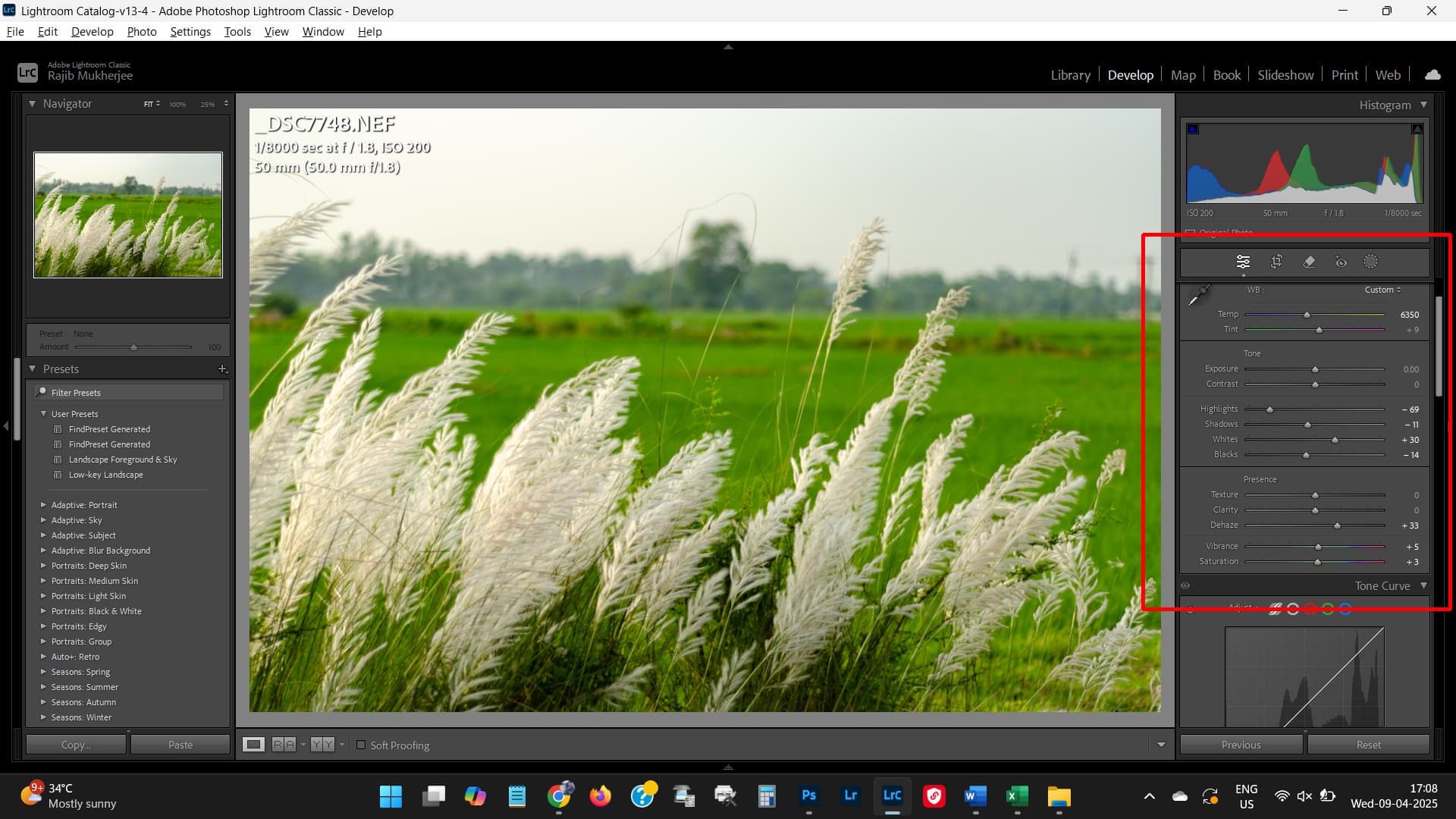
When you edit a photo in Lightroom and export it, the software can embed your exact editing settings into the image file as XMP metadata. Every slider value gets stored: exposure, contrast, highlights, shadows, white balance, HSL adjustments, color grading, the whole thing.
Metadata extraction tools read this embedded data and reconstruct it as a usable Lightroom preset. The result is exact, because you’re reading the original settings, not guessing. The catch? The metadata has to be there to begin with. Social media platforms strip this data during upload, and not all export settings preserve it.
Method 2: AI-Powered Analysis
When metadata isn’t available (which is honestly the case for most images you find online), AI analysis steps in. These tools use computer vision to examine what the photo actually looks like: its color palette, tonal distribution, contrast, saturation patterns, all the measurable stuff.
The AI then maps these observations to approximate Lightroom slider values. It’s essentially reverse-engineering the edit by studying the final result. Core tone settings such as exposure and contrast come out closest; highlights, shadows, saturation and white balance may need minor tweaking. Localized edits (radial filters, brush adjustments) are harder, because they don’t show up clearly in a flat image, so they can only be approximated.
Why the Best Tools Use Both
The smart approach, and this is what separates the good tools from the mediocre ones, is to check for embedded Lightroom metadata first. If it’s there, use it for exact results. If the metadata is missing or incomplete, fall back to AI analysis for an intelligent approximation. FindPreset actually does this. It attempts EXIF-based extraction first for precision, then offers AI analysis when metadata isn’t available. That way you get the exact settings when they survive, and an AI approximation when they don’t.
| EXIF/Metadata Extraction | AI Analysis | |
|---|---|---|
| Accuracy | Exact: original slider values | Approximate: captures most of the look |
| Works on any image | Only if Lightroom metadata is embedded | Yes, any JPEG or PNG |
| Social media photos | No, metadata is stripped | Yes |
| Speed | A couple of seconds | About half a minute |
| Localized edits detected | Yes (if in metadata) | Approximated |
| Fine-tuning needed | None to minimal | Usually some manual adjustment |
The 5 Best AI Preset Tools in 2026
1. FindPreset: Best All-Round Preset Extractor
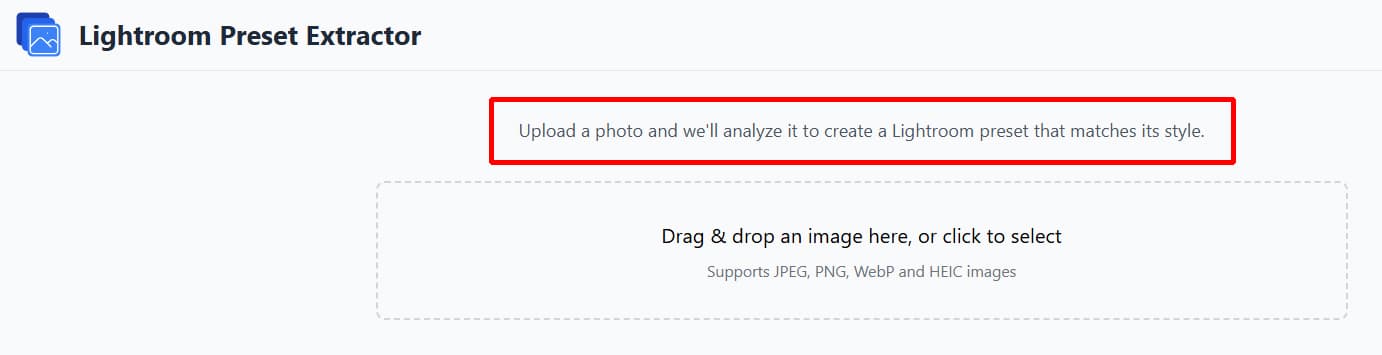
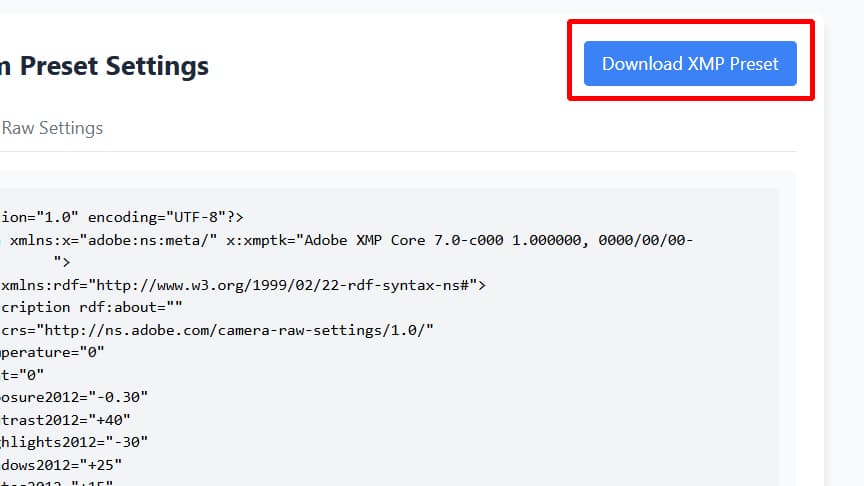
FindPreset is a web tool that extracts Lightroom presets directly from photos. You upload an edited image, it reads or analyzes the photo, and you get a .XMP preset file to import into Lightroom. Dead simple.
What actually impressed me about FindPreset is the dual extraction approach. It checks for embedded EXIF/XMP metadata from Lightroom first; if it finds it, you get the exact original editing settings. When metadata isn’t available (common with photos from social media or the web), it offers AI-powered analysis to estimate the preset from the image’s visual characteristics. Exact extraction is free and needs no account.
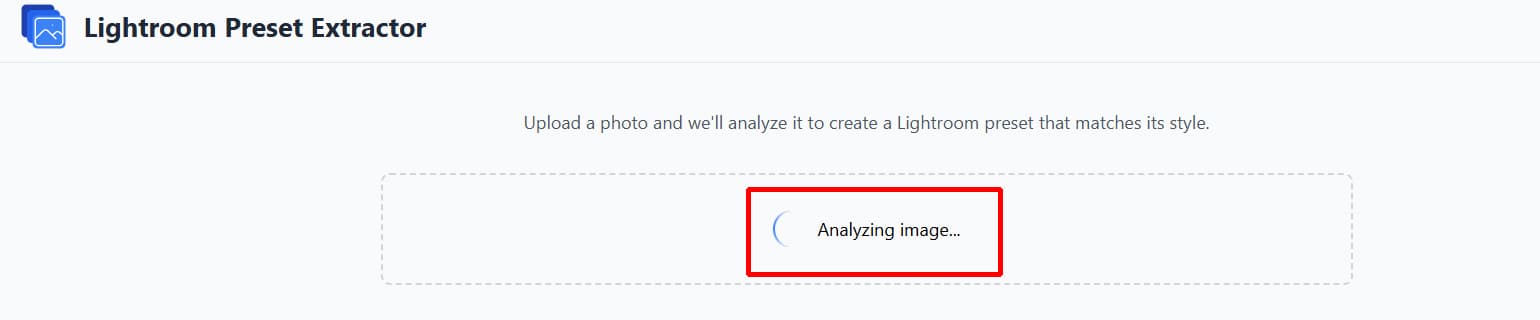
Upload a photo and download the resulting .XMP file: a couple of seconds when the Lightroom settings are embedded, about half a minute when AI recreates the look. It handles all the major Lightroom adjustment categories: exposure, white balance, tone curve, HSL, color grading. I uploaded a heavily edited sunset shot from Instagram and got back something immediately usable, which honestly surprised me given how much metadata Instagram strips.
2. Polychrome: Best for Text-to-Preset Generation
Polychrome flips the whole approach on its head. Instead of analyzing an existing photo, you describe the look you want in plain English (“warm sunset tones with lifted shadows and muted greens”), and it generates a Lightroom preset from your description.
The tech here is built on general-purpose OpenAI language models, which you pick from a drop-down menu. It translates aesthetic descriptions into actual slider values. You can rerun it with a reworded prompt (up to 100 characters) until the output matches your vision. This one’s genuinely useful for creative exploration when you have a vibe in your head but no reference photo to match.
Polychrome’s generator is free and works without an account, and each preset downloads straight to your device. The results are definitely more experimental than extraction-based tools, which honestly makes it better for discovering new looks you wouldn’t have tried manually. Fair warning: the UI took me a minute to figure out, but the concept is solid.
3. Imagen AI: Best for Learning Your Personal Style
Imagen AI is a desktop application, mostly for professional photographers, especially wedding and event shooters. This one doesn’t extract a preset from a single photo. Instead, it learns your editing style across thousands of images and then applies that style to new photos automatically.
You train a personal AI profile by uploading your edited catalog. Imagen analyzes your patterns (how you handle skin tones, exposure, color grading) and builds a model that can edit new images in your style. This is less about creating a single preset and more about automating your entire culling and editing workflow. It’s a different beast from the other tools here.
Pricing is per photo edited or a flat-fee plan, and per-photo costs add up if you’re processing large shoots. But I get the appeal: for someone processing 500+ wedding images per event, the time savings could be significant. I’ll be upfront: this one can cost the most here if you edit in volume, and it’s not for casual photographers.
4. ChatGPT (Vision): Best for Understanding Edits Conceptually
ChatGPT with vision capabilities can analyze a photo and tell you what Lightroom adjustments were probably used. Upload an image, ask it to identify the editing style, and it responds with a breakdown of likely settings: “increased contrast, lowered highlights, warm white balance, desaturated greens.”
Here’s the limitation: ChatGPT gives you text descriptions by default, not ready-made XMP preset files. You’d have to manually recreate the suggested settings in Lightroom, which is time-consuming and depends entirely on your ability to translate words into slider positions. When asked to produce raw preset code, it often makes formatting errors or outputs inaccurate values.
Where ChatGPT actually shines is as a learning tool. If you’re trying to understand why a photo looks the way it does, having an AI explain the editing approach in plain language can teach you more about the process than a preset file alone. I used it a few times just to understand the “why” behind certain edits, and that was genuinely helpful.
5. Adobe’s Built-In AI (Lightroom): Best for In-App Suggestions
Adobe has been embedding AI features directly into Lightroom: adaptive presets, one-click enhancement suggestions, that kind of thing. These tools analyze your photo and suggest adjustments or apply styles that Adobe’s algorithms think will improve the image.
The advantage is convenient: everything stays inside Lightroom. No exporting, uploading, importing. The AI suggestions appear as starting points you can then fine-tune manually. Adobe says its Recommended presets adapt over time as its AI learns, though it doesn’t build a personal style model like Imagen AI does.
The catch? You can’t use Adobe’s built-in AI to extract presets from external photos. It only works with images already in your Lightroom catalog, and the suggestions are about optimizing your photo, not replicating someone else’s style.
| Feature | FindPreset | Polychrome | Imagen AI | ChatGPT Vision | Adobe LR AI |
|---|---|---|---|---|---|
| Primary method | EXIF + AI hybrid | Text-to-preset AI | Style learning AI | Visual analysis AI | In-app AI suggestions |
| Outputs XMP preset | Yes, direct download | Yes | No, applies edits directly | Sometimes, inconsistent | No, applies in-app |
| Works on any photo | Any JPEG or PNG | N/A (text input) | No, edits your own photos | Yes | Current photo only |
| EXIF metadata reading | Yes, checks first | No | No | No | N/A |
| AI fallback | Yes, when no metadata | N/A | N/A | Only method | N/A |
| Privacy | Cloud | Cloud | Cloud (Imagen) | Cloud (OpenAI) | Local or cloud (Adobe) |
| Signup required | Not for exact extraction | No | Yes | Yes (free account) | Yes |
| Pricing | Exact extraction free | Free | Per photo or flat fee | Free or paid plans | Included in Lightroom plans |
| Accuracy | Exact with metadata, AI approximate | Variable | High (for your style) | Low-medium | N/A |
Which Tool Should You Use?
Honest answer: these tools do different things, and the best choice depends on what you’re actually trying to accomplish.
Use FindPreset if you want to extract a preset from an existing photo, whether it’s from Instagram, your own edited work, or someone else’s portfolio. It’s the most straightforward option, and exact extraction works without an account.
Use Polychrome if you’re exploring creatively and want to generate presets from mood descriptions. This one’s better for “what if” experimentation than for precise replication.
Use Imagen AI if you’re a professional shooter with a large catalog and you want to automate your entire workflow based on your personal style. The time savings are real, but a personal profile needs thousands of your edited photos to train.
Use ChatGPT if you want to understand the editing approach behind a photo rather than generate a preset file. It’s more of a learning tool than a workflow tool.
Use Adobe’s built-in AI if you want quick enhancement suggestions for photos already in Lightroom. It’s convenient and integrated, but limited to your own catalog.
Can AI accurately extract a Lightroom preset from any photo?
It depends on the method. If the photo contains embedded Lightroom metadata (EXIF data), extraction tools can retrieve the exact settings, no AI needed. When metadata is missing, AI analysis can approximate the editing style and capture most of the look: exposure and contrast come out closest, while highlights, shadows, saturation and white balance may need minor tweaking. Localized edits such as brush adjustments can only be approximated from a flat image. For the most reliable results, use a tool like FindPreset that checks for metadata first and falls back to AI when needed.
What’s the difference between preset extraction and preset generation?
Extraction starts with an existing photo and works backward to determine what edits were applied. Generation starts with a text description or learned style and creates new settings from scratch. Extraction is more precise when you have a specific reference image. Generation is better for creative exploration when you know the mood but don’t have a visual reference.
Is it legal to extract presets from other photographers’ photos?
Extracting editing settings from a photo for personal use and learning is generally acceptable: you’re analyzing color data and slider positions, not copying the image itself. However, if a photographer sells their presets commercially, reverse-engineering and redistributing those exact settings would be ethically questionable. Use extracted presets as learning tools and starting points for your own style.
Which AI preset tool is the most accurate?
Metadata-based extraction gives you the exact settings, because you’re reading the original ones. For AI-based extraction, dedicated tools like FindPreset give you an XMP file with actual slider values, while general-purpose AI like ChatGPT usually gives you a text description you have to translate yourself. Imagen AI is highly accurate for replicating your own style since it’s trained on your editing history, but it can’t extract someone else’s look.
Do AI-extracted presets work on Lightroom Mobile?
Yes. XMP preset files exported by tools like FindPreset are compatible with Lightroom Classic, Lightroom CC, and Lightroom Mobile. Import the XMP through the Presets panel on any platform. Some advanced settings may display slightly differently on Mobile, but the core color grading and tonal adjustments transfer cleanly.
How long does it take to extract a preset with AI?
With FindPreset, AI extraction usually takes about half a minute for a single photo: upload it, wait for the analysis, and download the XMP file. Reading embedded Lightroom settings is faster, a couple of seconds, since it’s just reading data already in the file.